Usage (Mockup)
Test Run
StartScreen
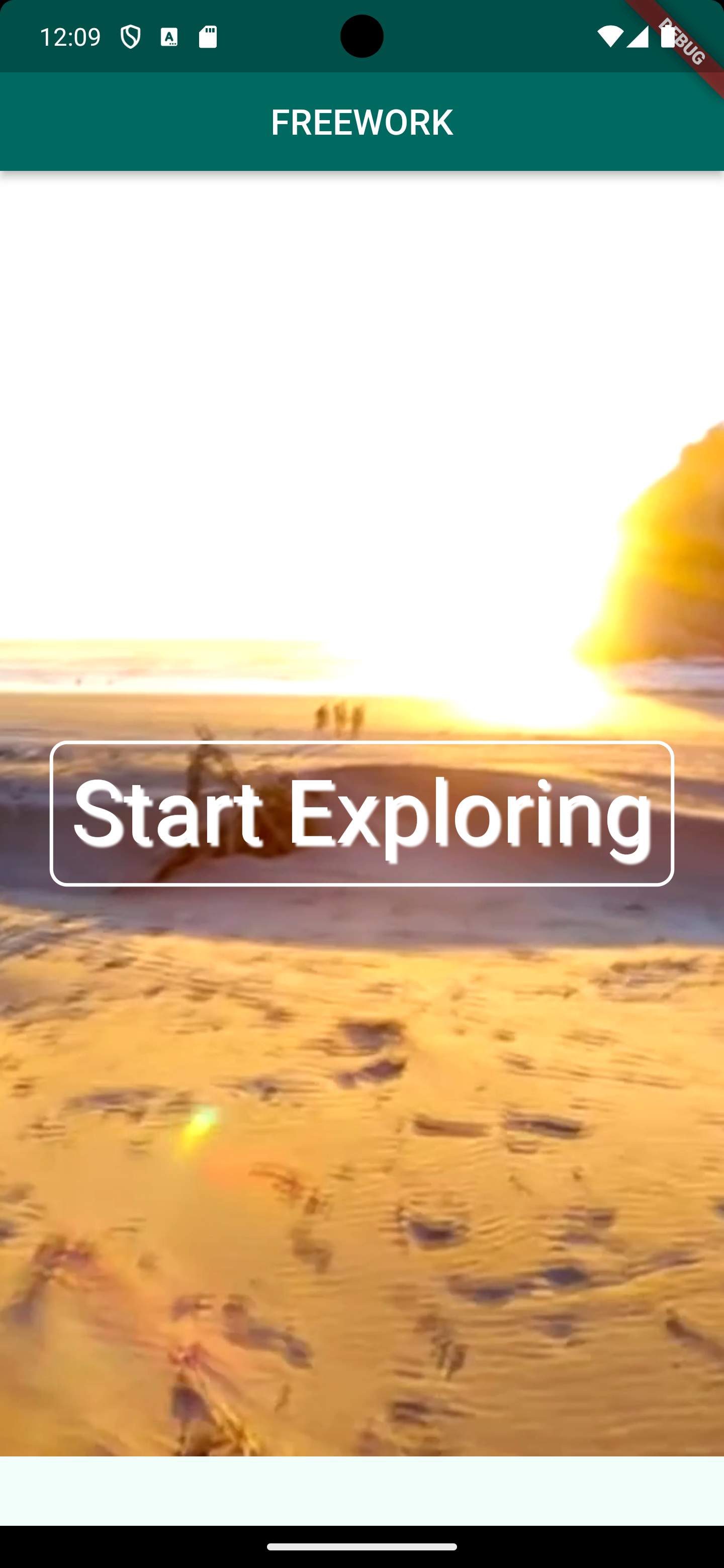
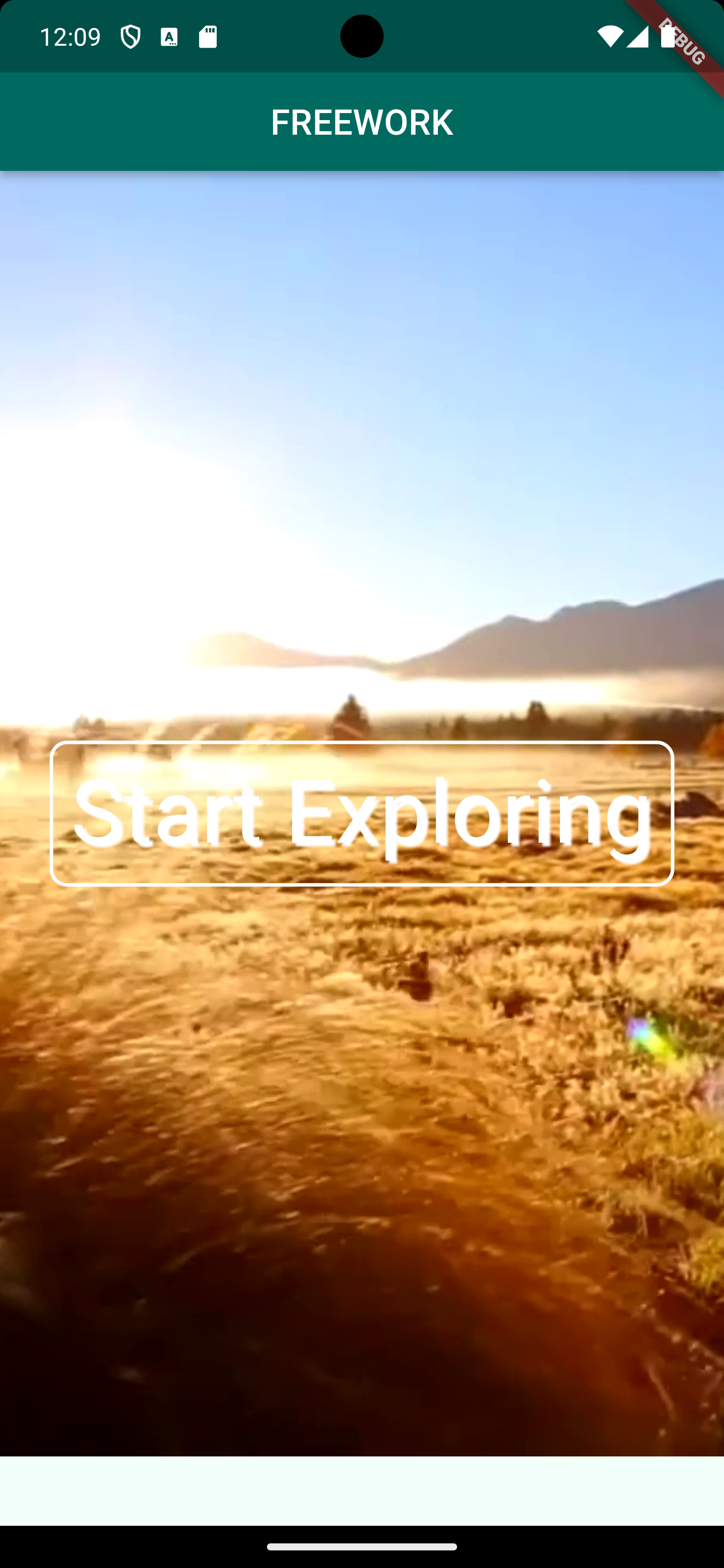
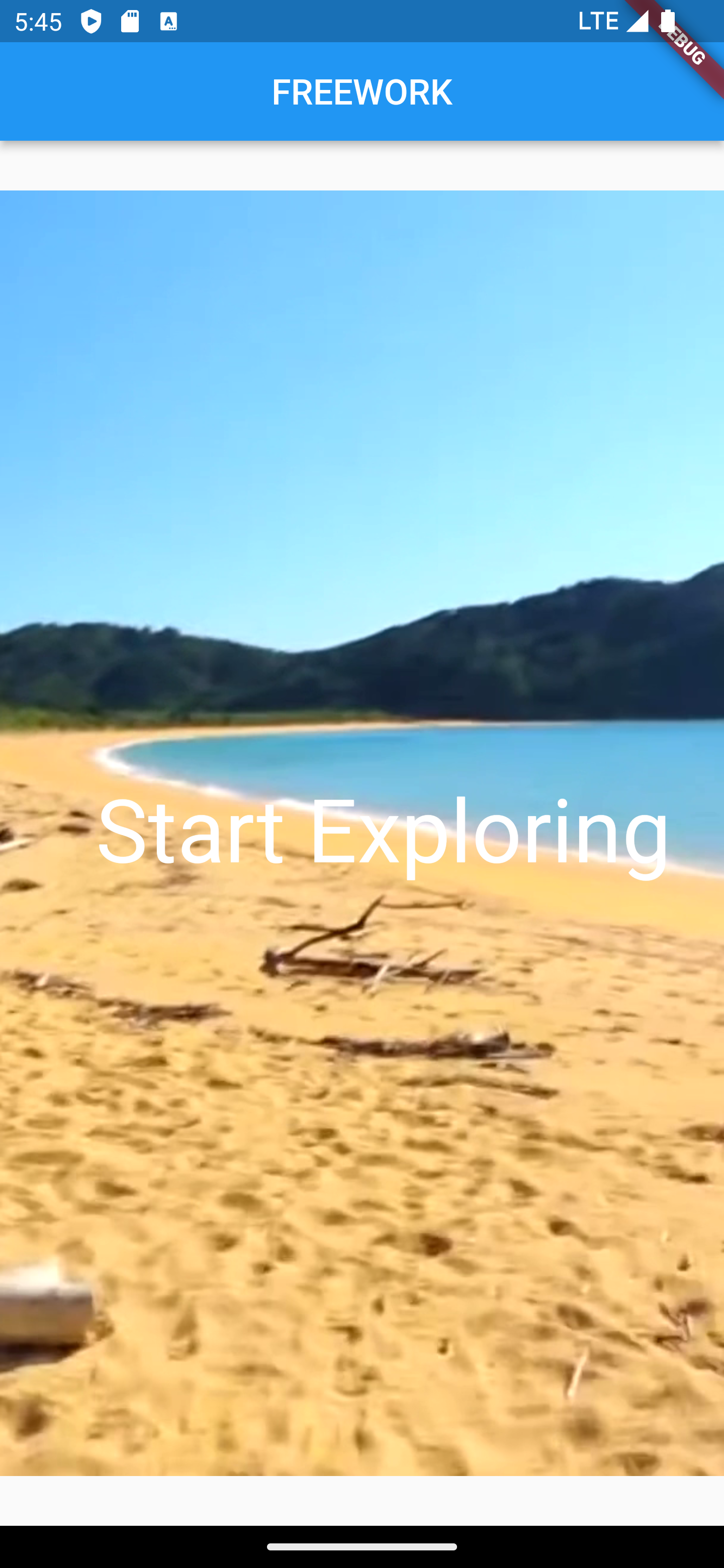
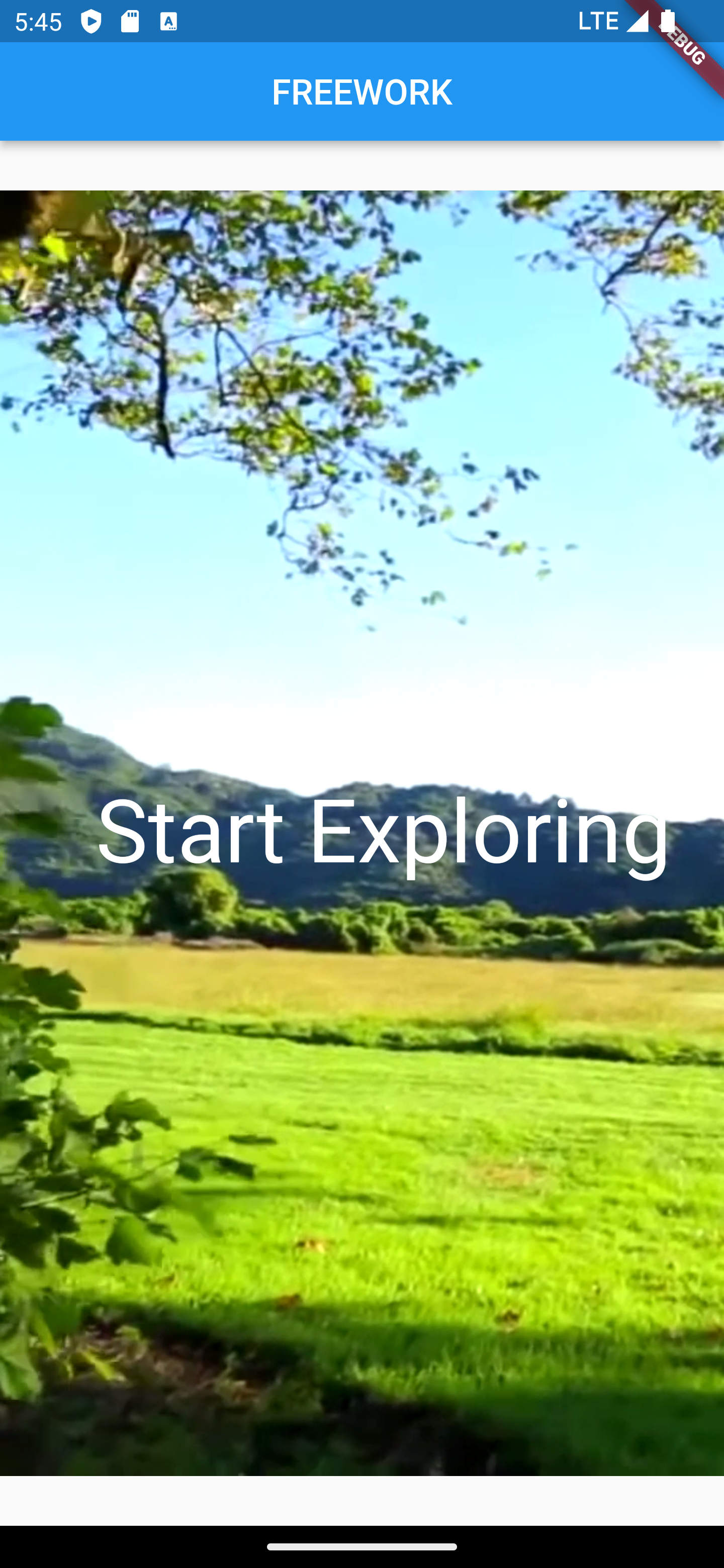
To motivate users for FREEWORK the start screen shows beautiful options outdoors by a video compared to a bleak office
Login
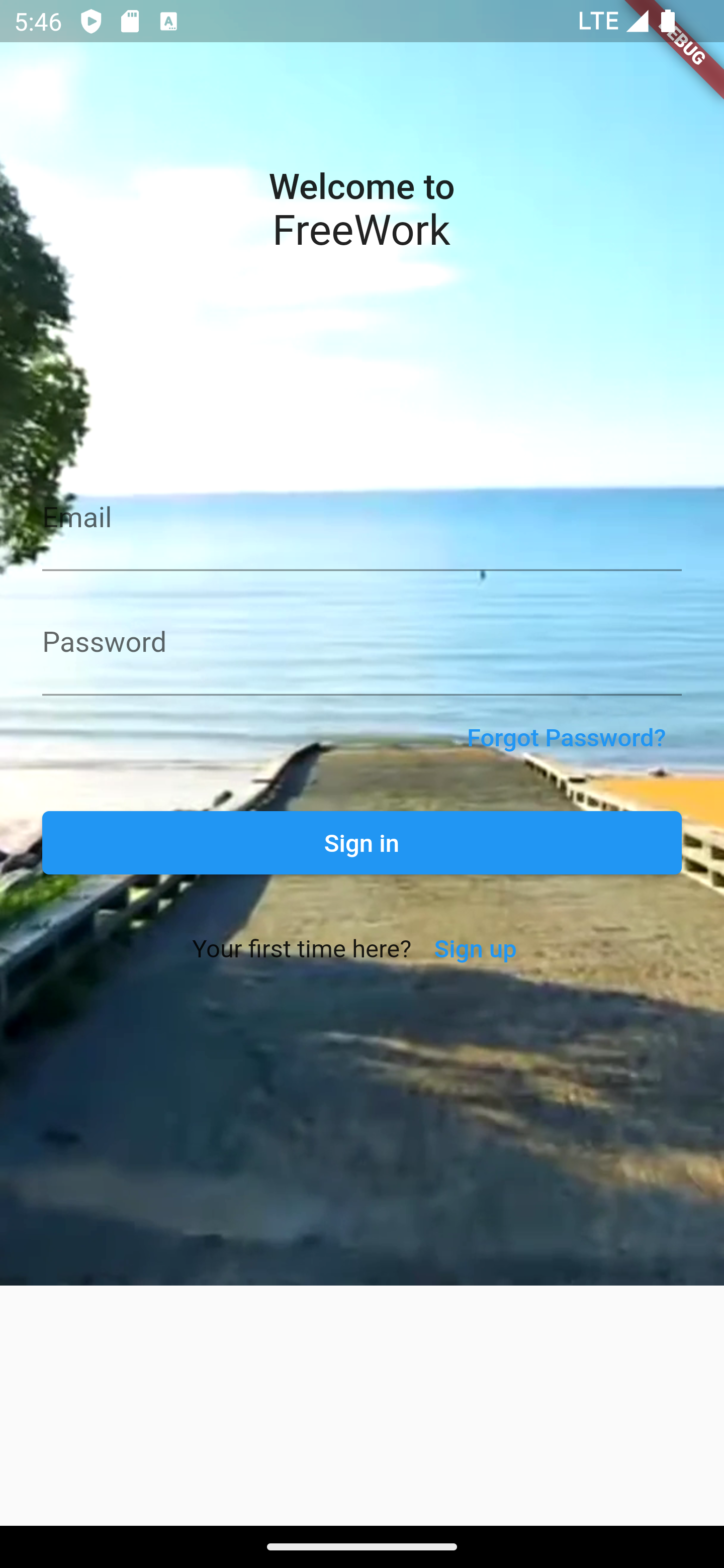
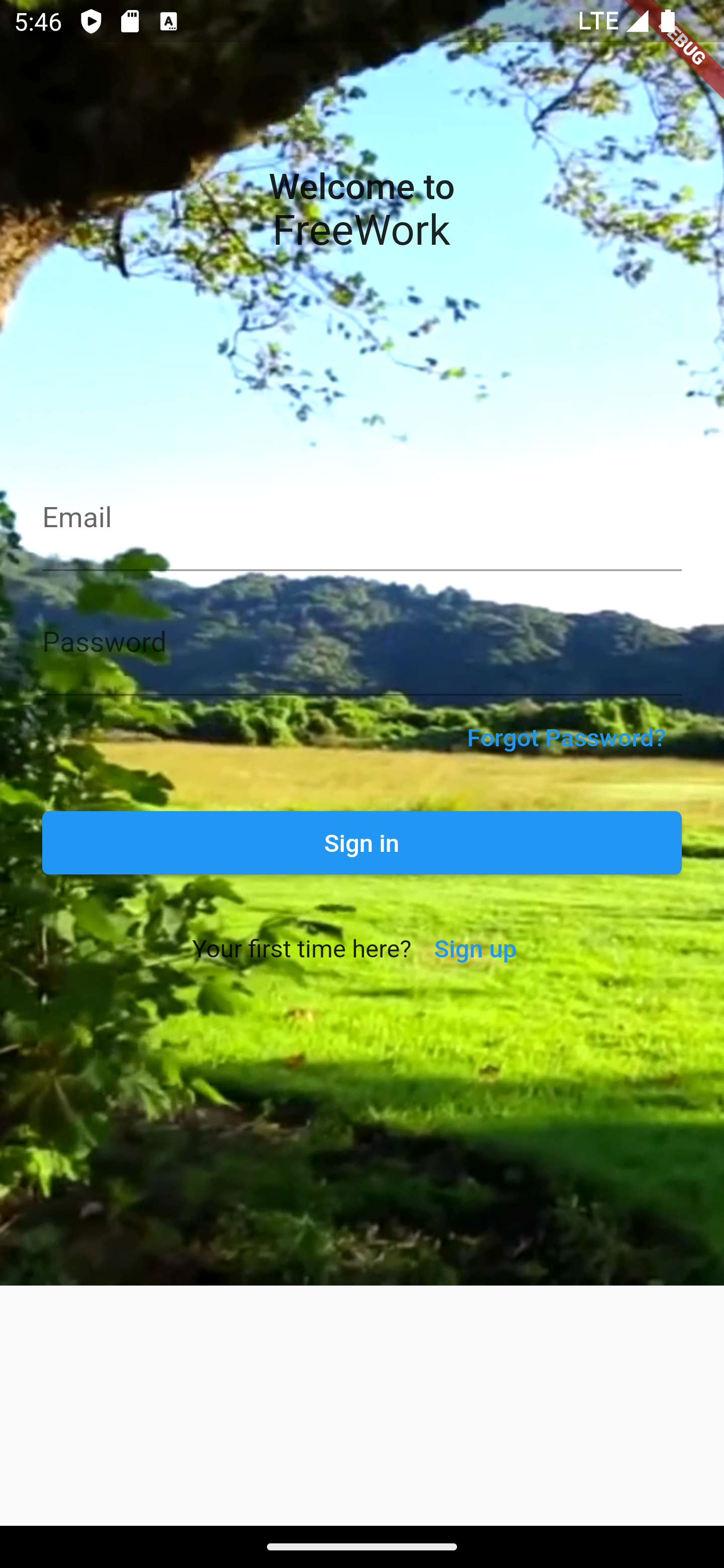
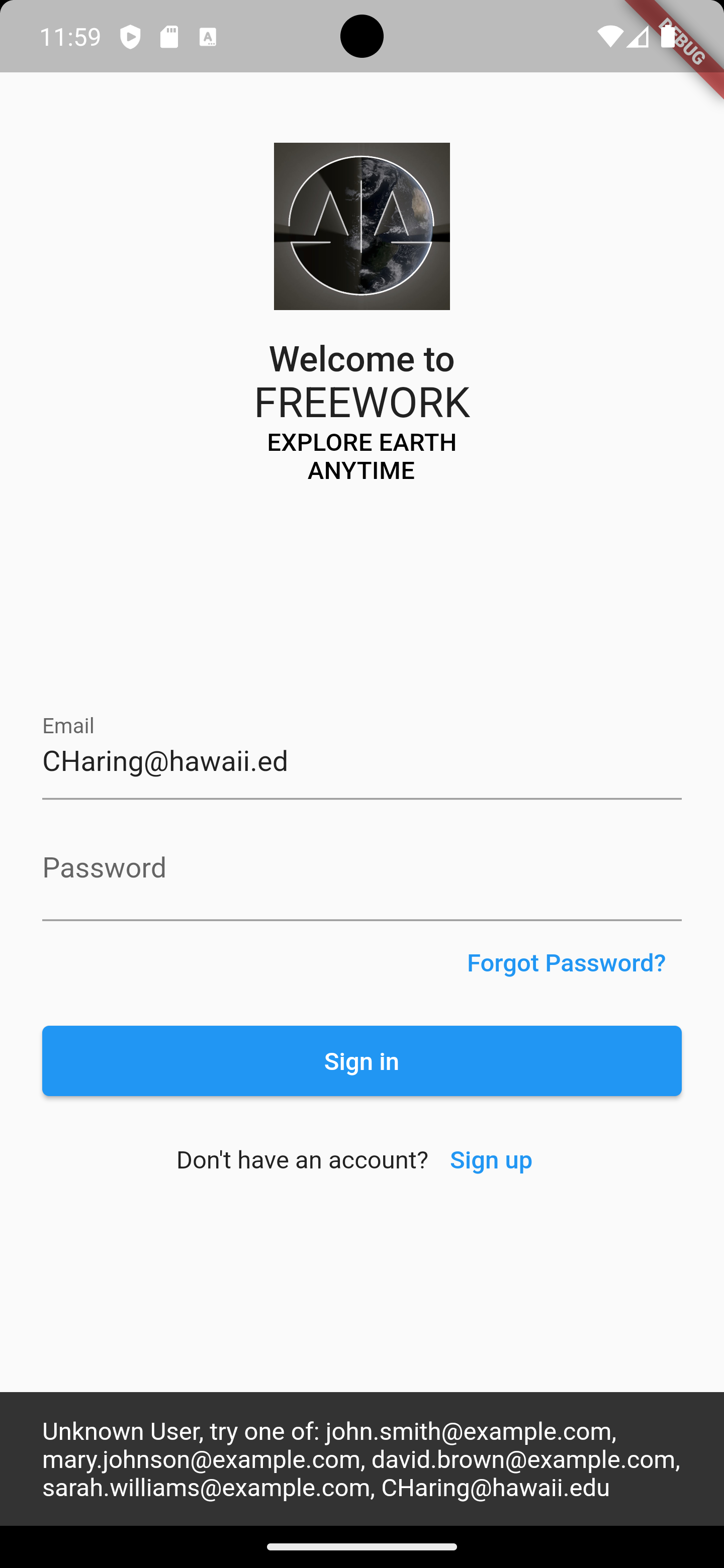
As with all mobile apps, you will be asked to sign in and/or register when you first use the app. Of course, you still see beautiful places.
Sigup
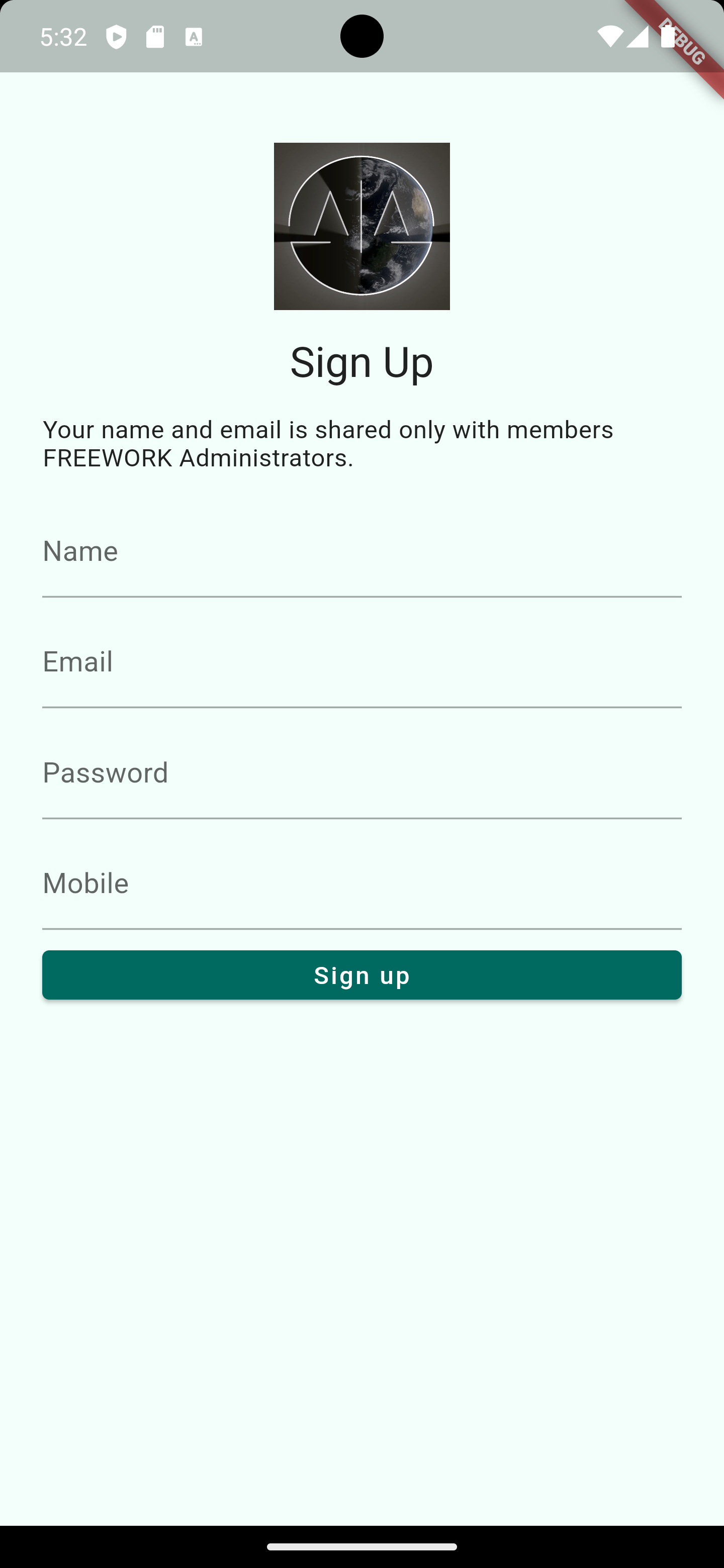
As with all mobile apps, you will be asked to sign in and/or register when you first use the app. Of course, you still see beautiful places.
Settings for themes using Riverpod
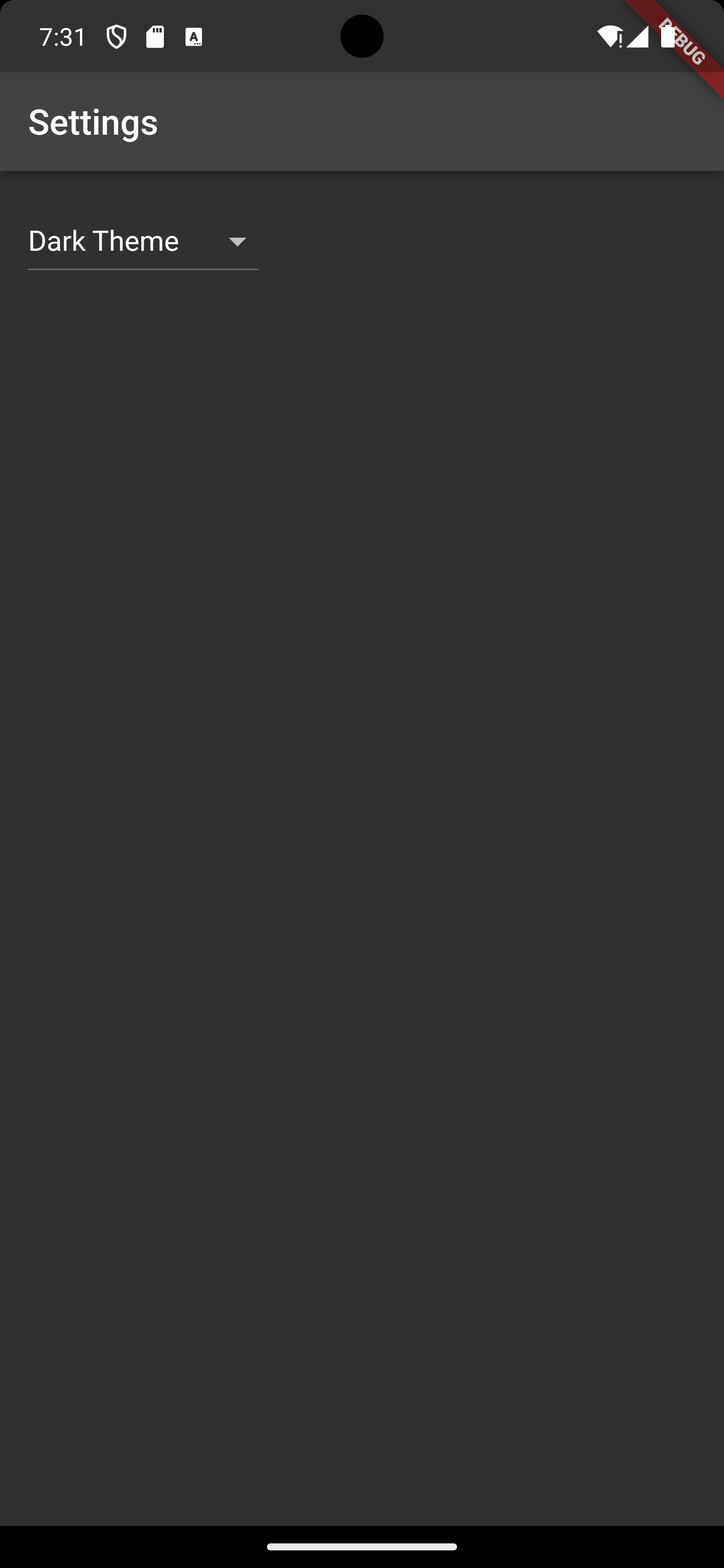
U can also choose your personal theme e.g. dark mode using the Riverpod state management package
Onboarding
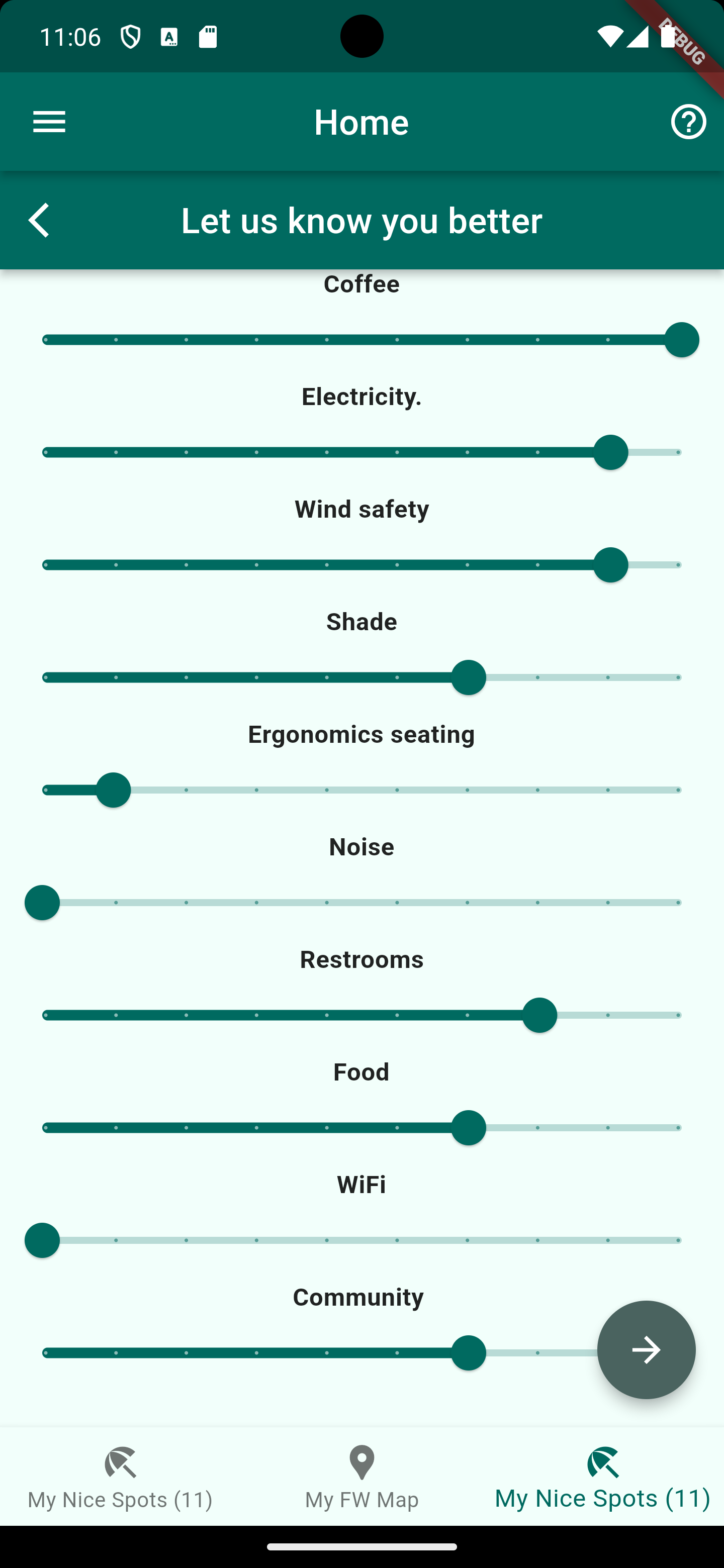
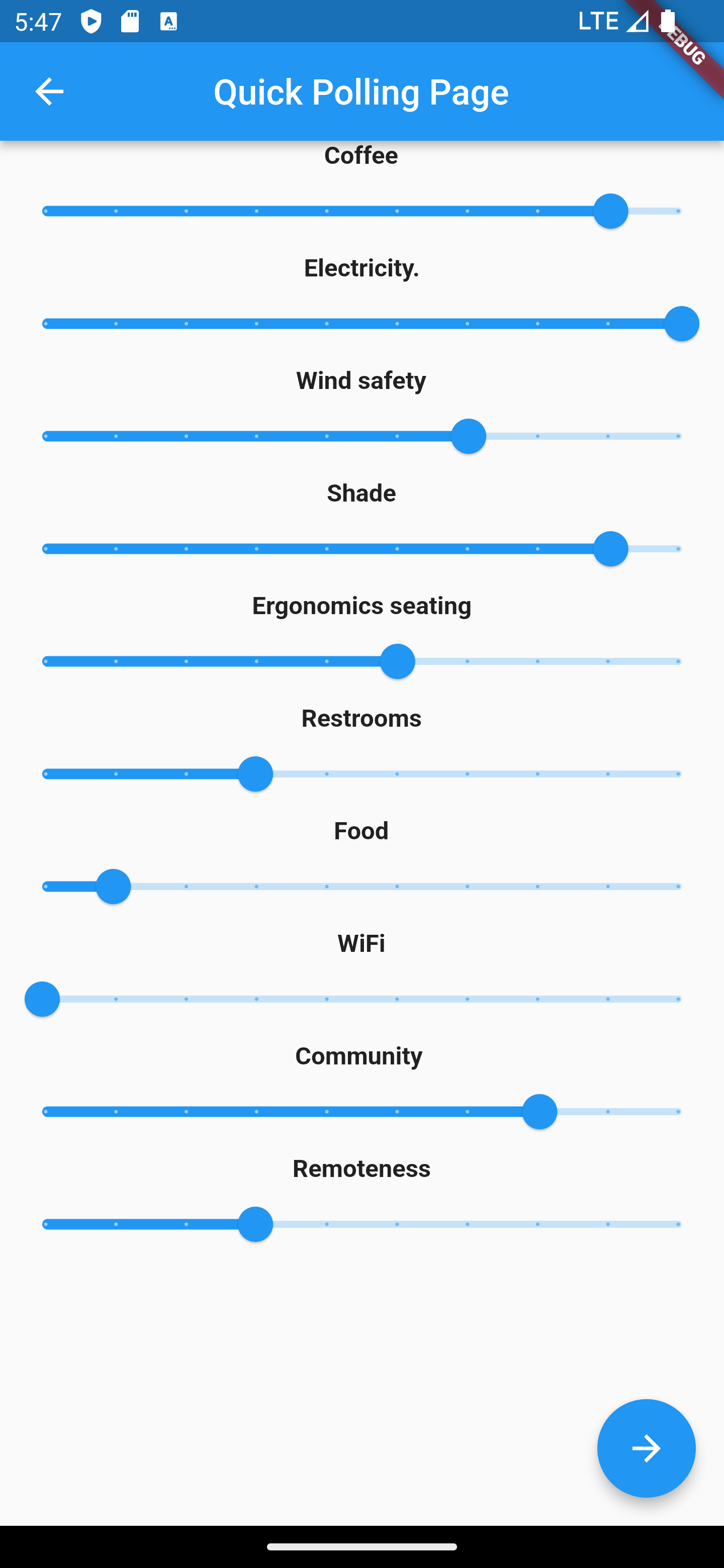
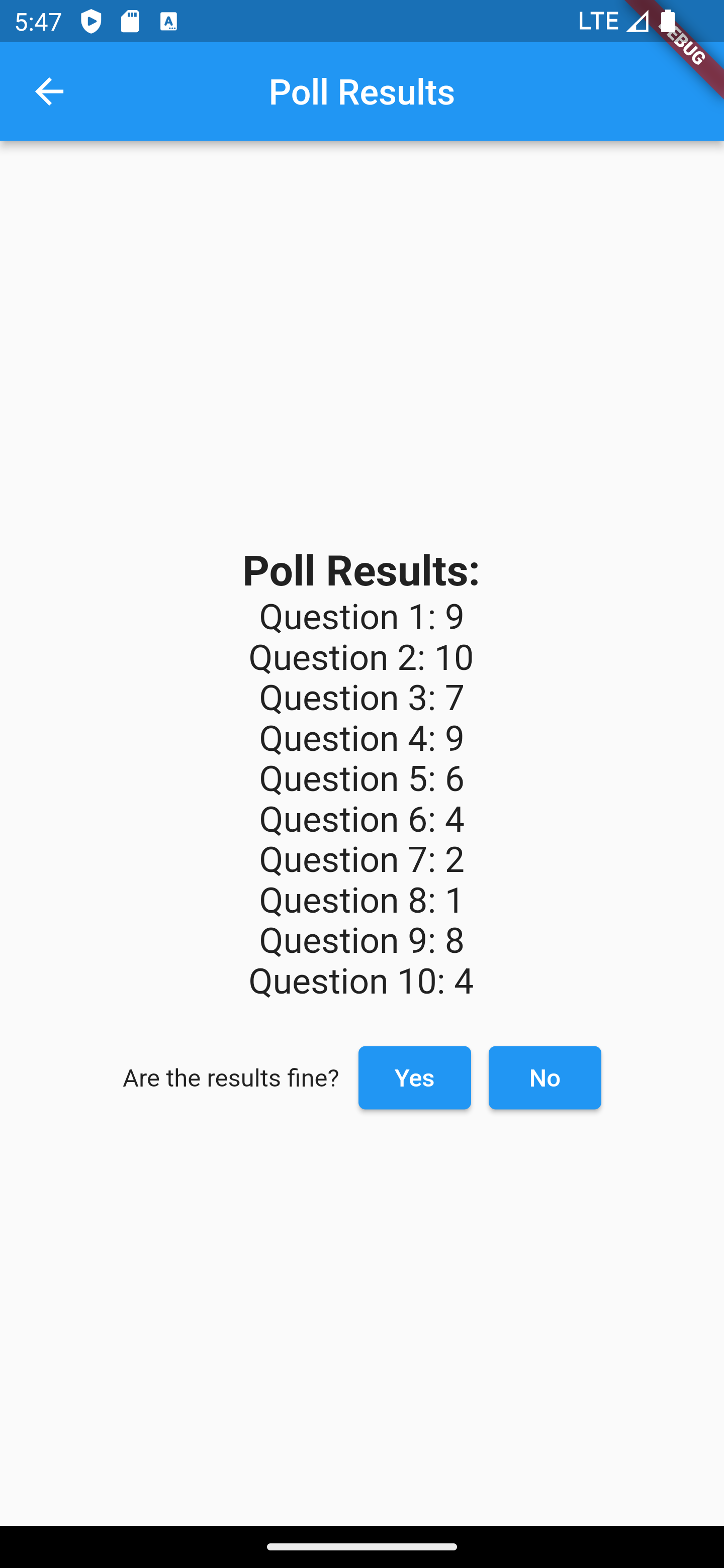
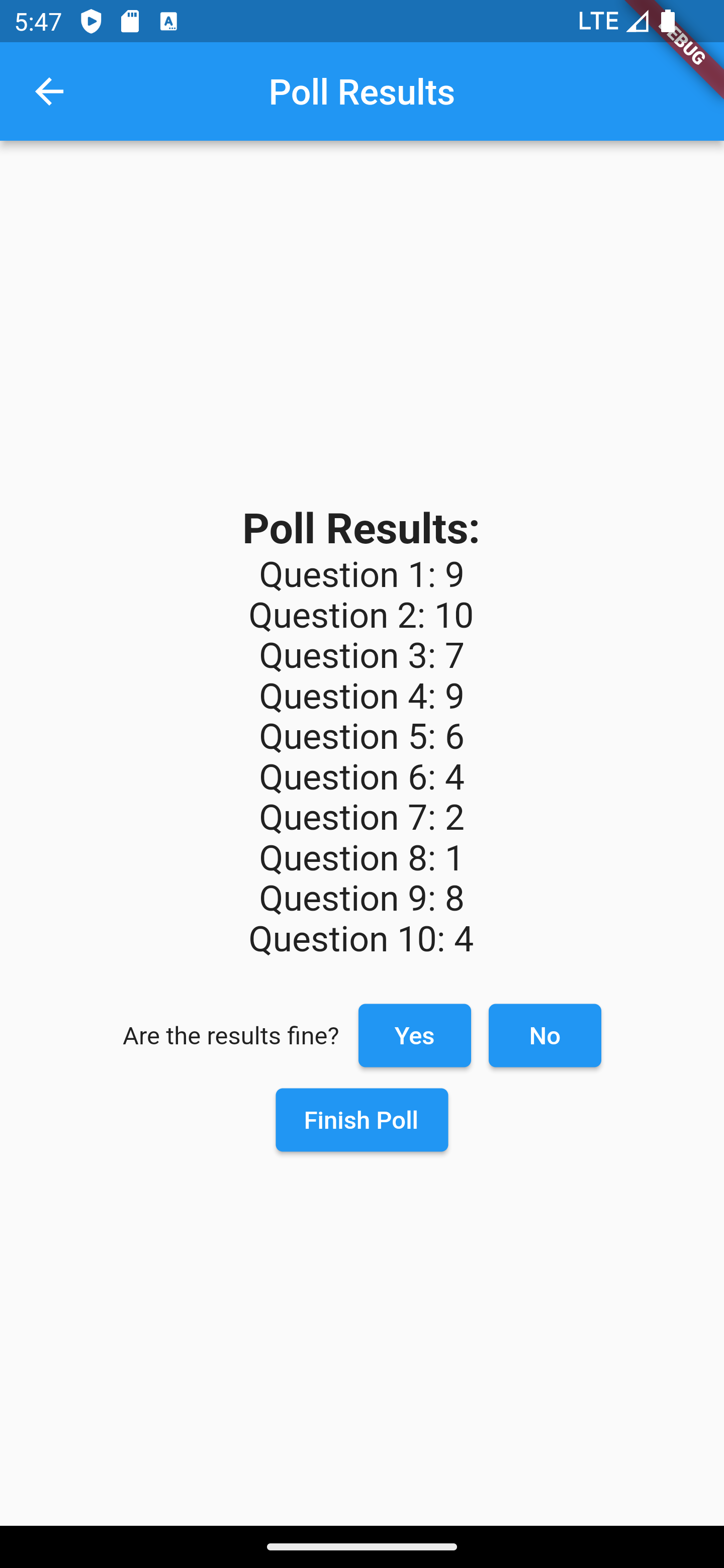
There will be an onboarding process with a video that will ask you for your preferences when you first register on our app.
Information and Access
When you first register on our app, you will be asked to share location and your calendar that we can individualize your personal FREEWORK map (not yet in mockup).
Home Screen
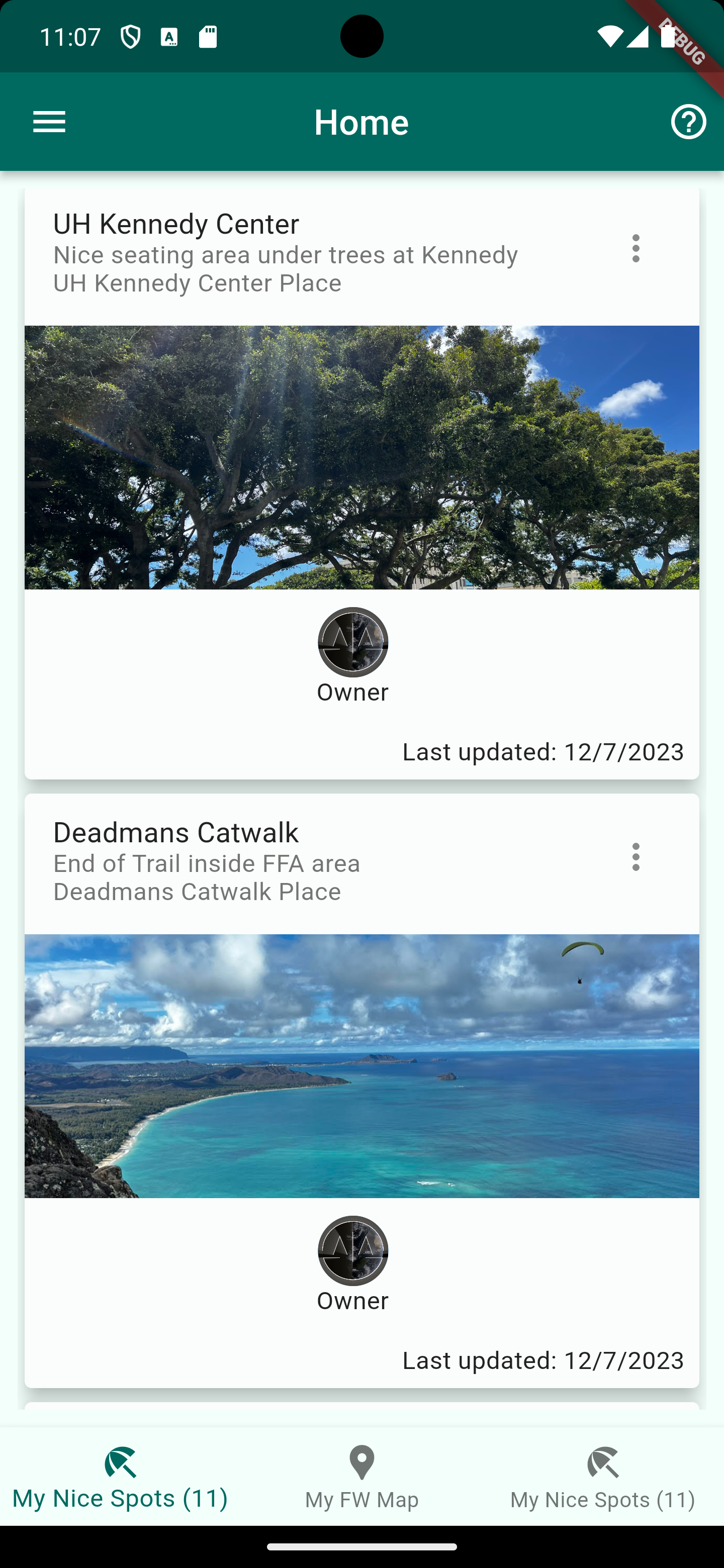
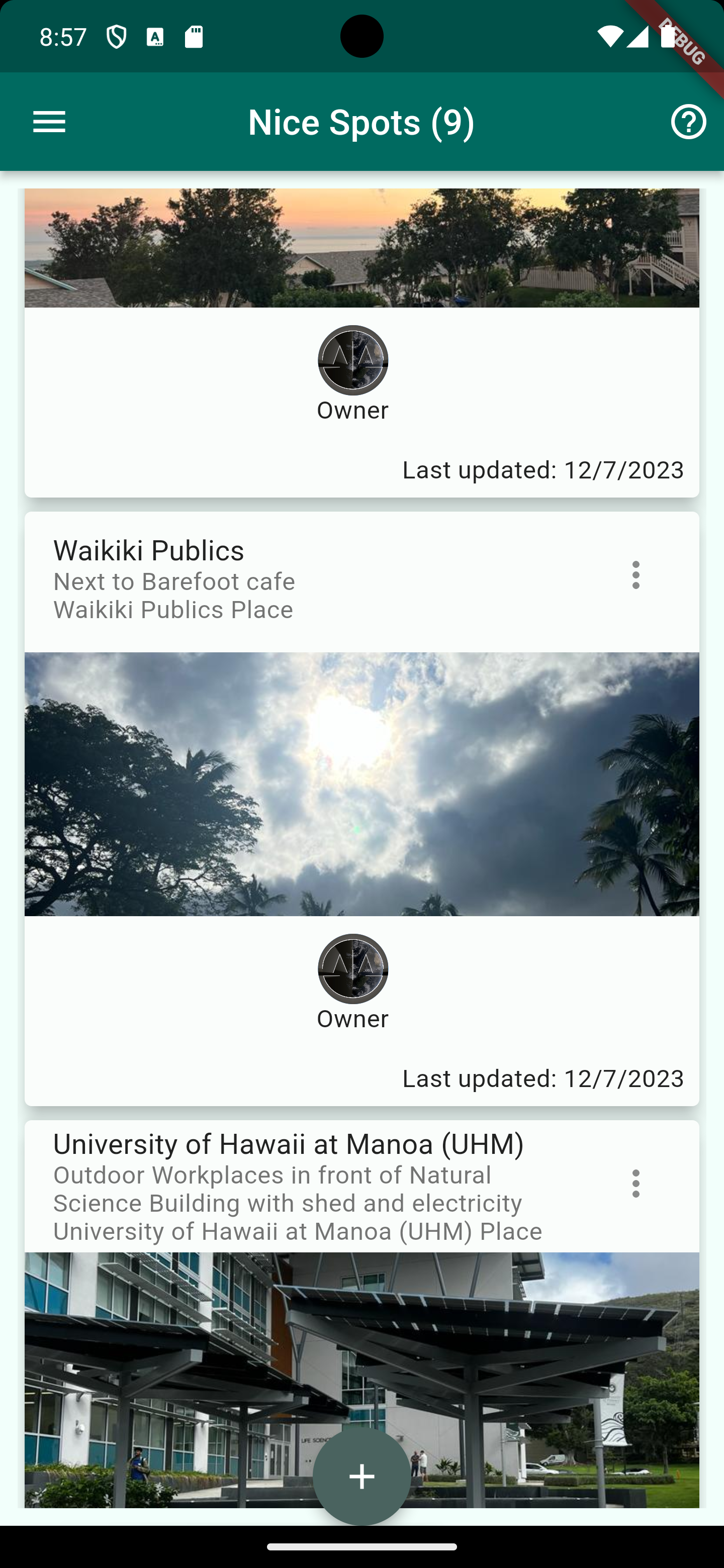
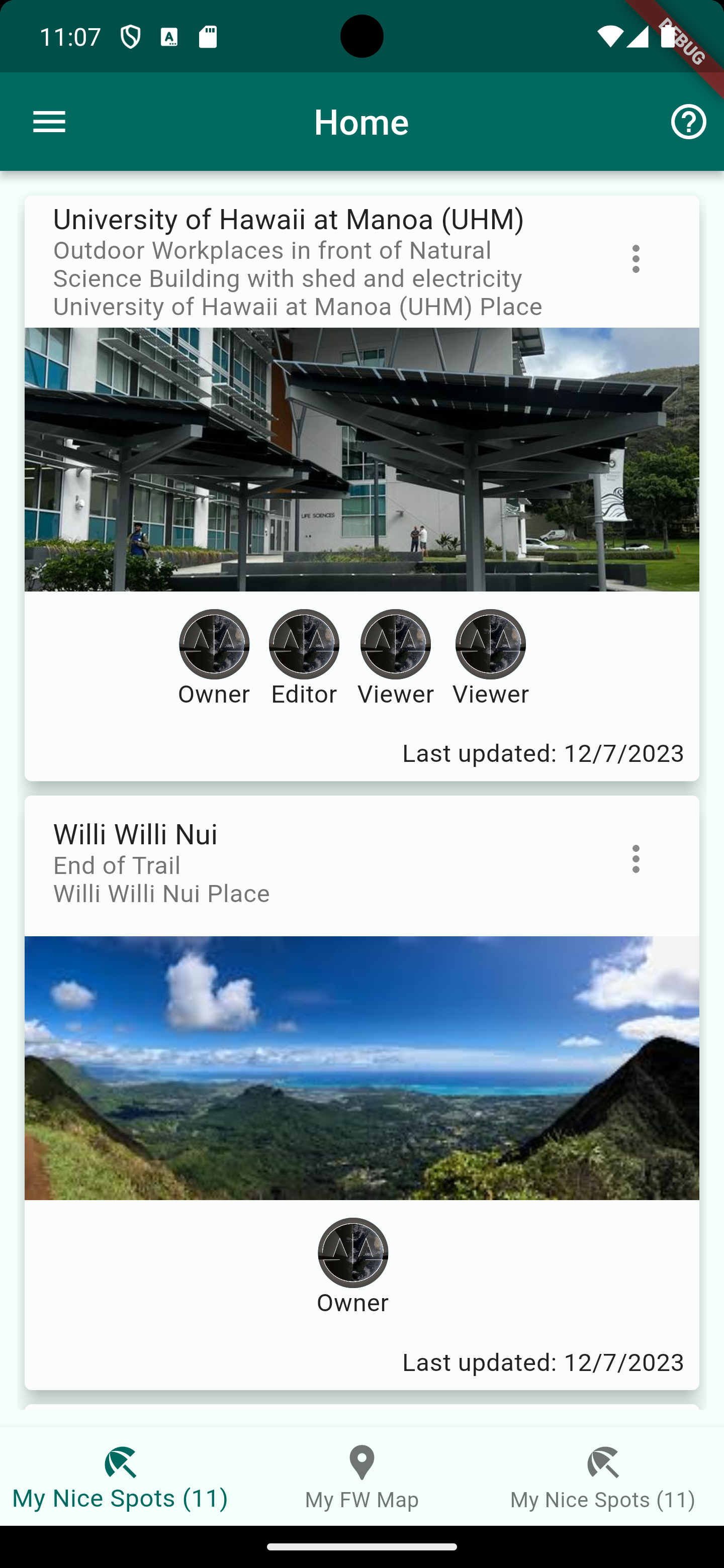
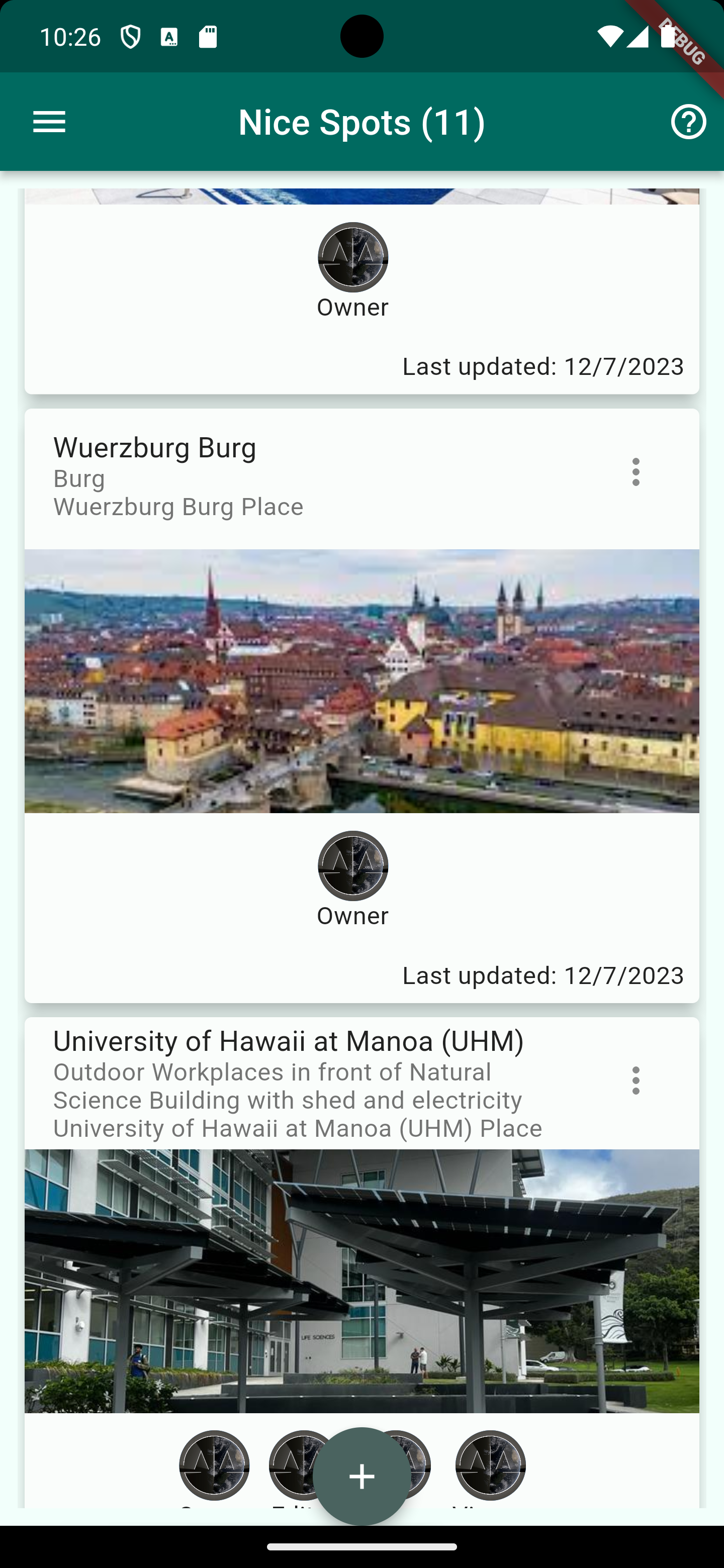
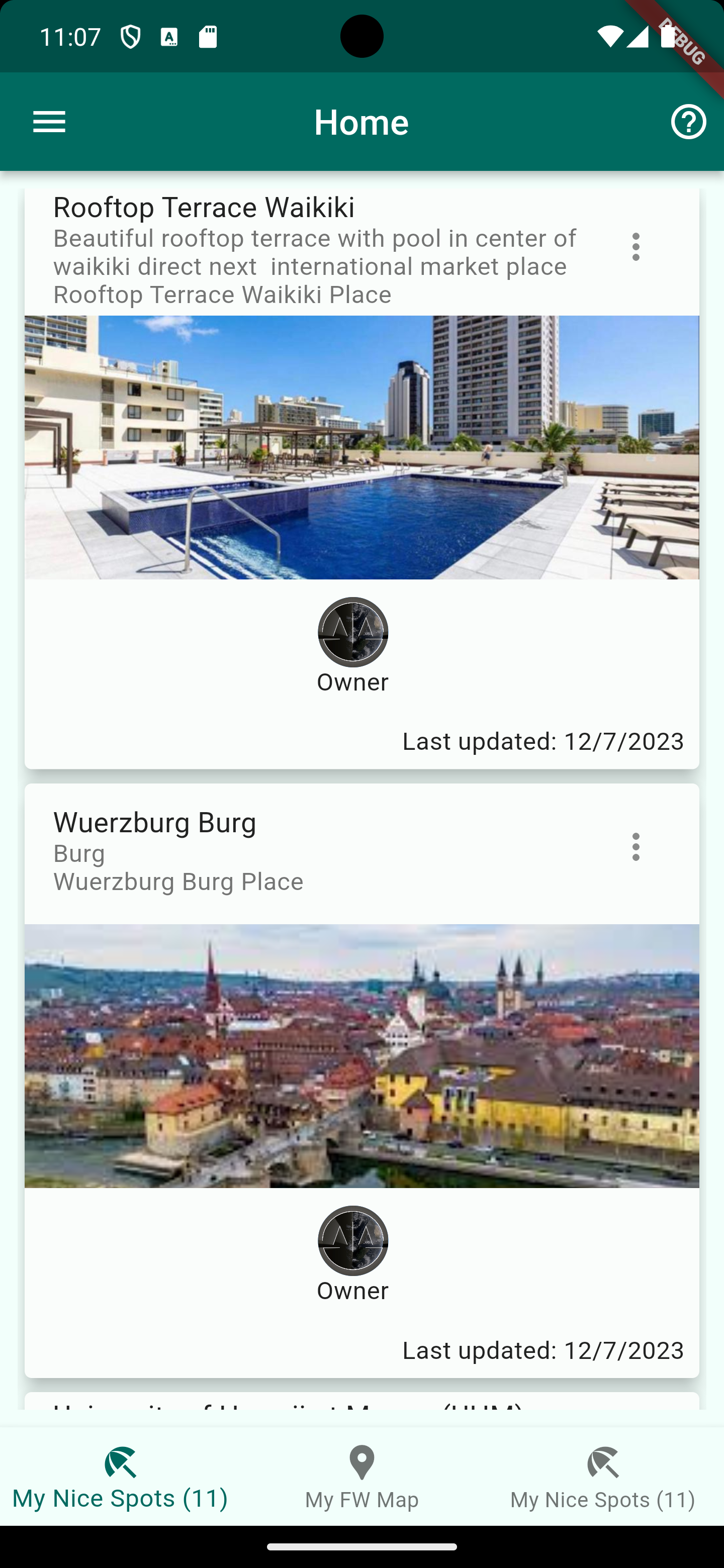
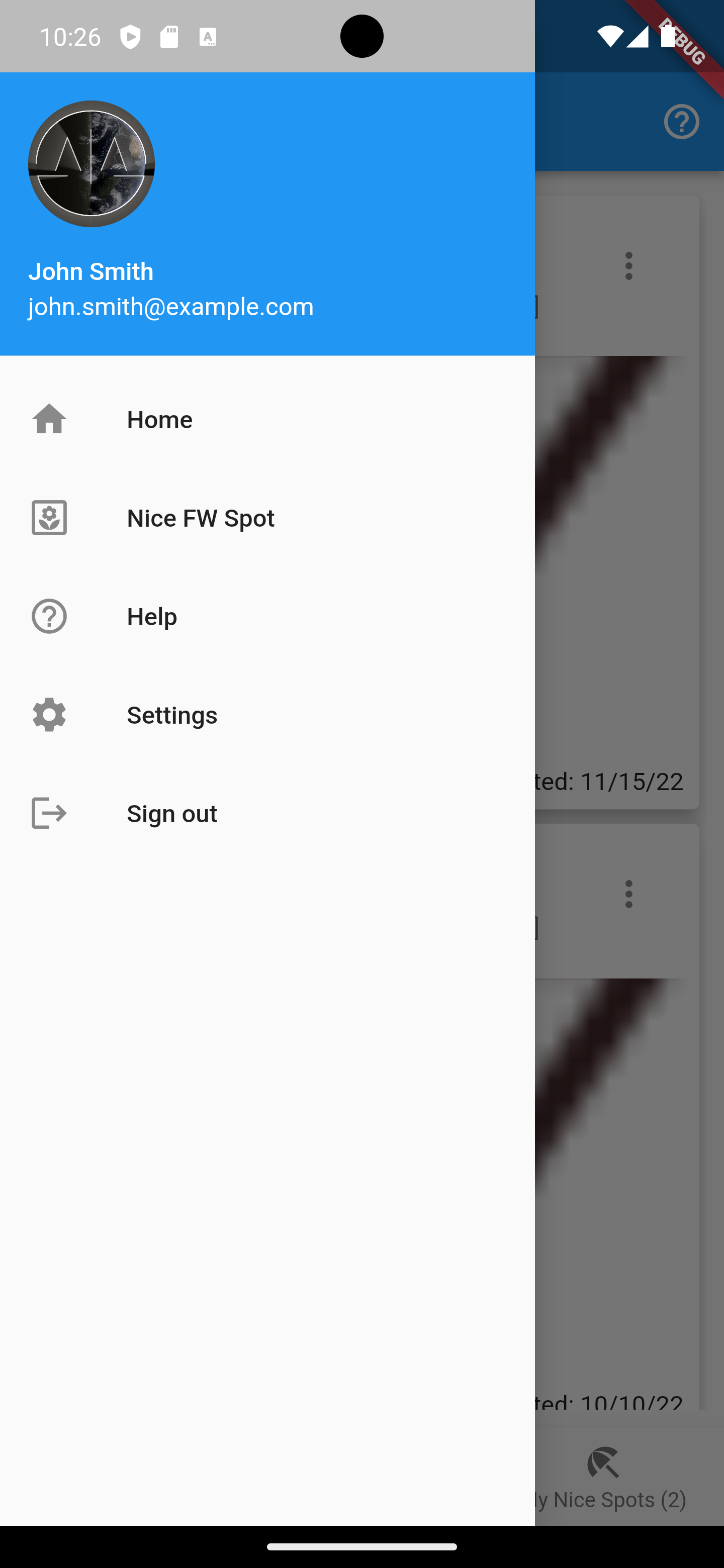
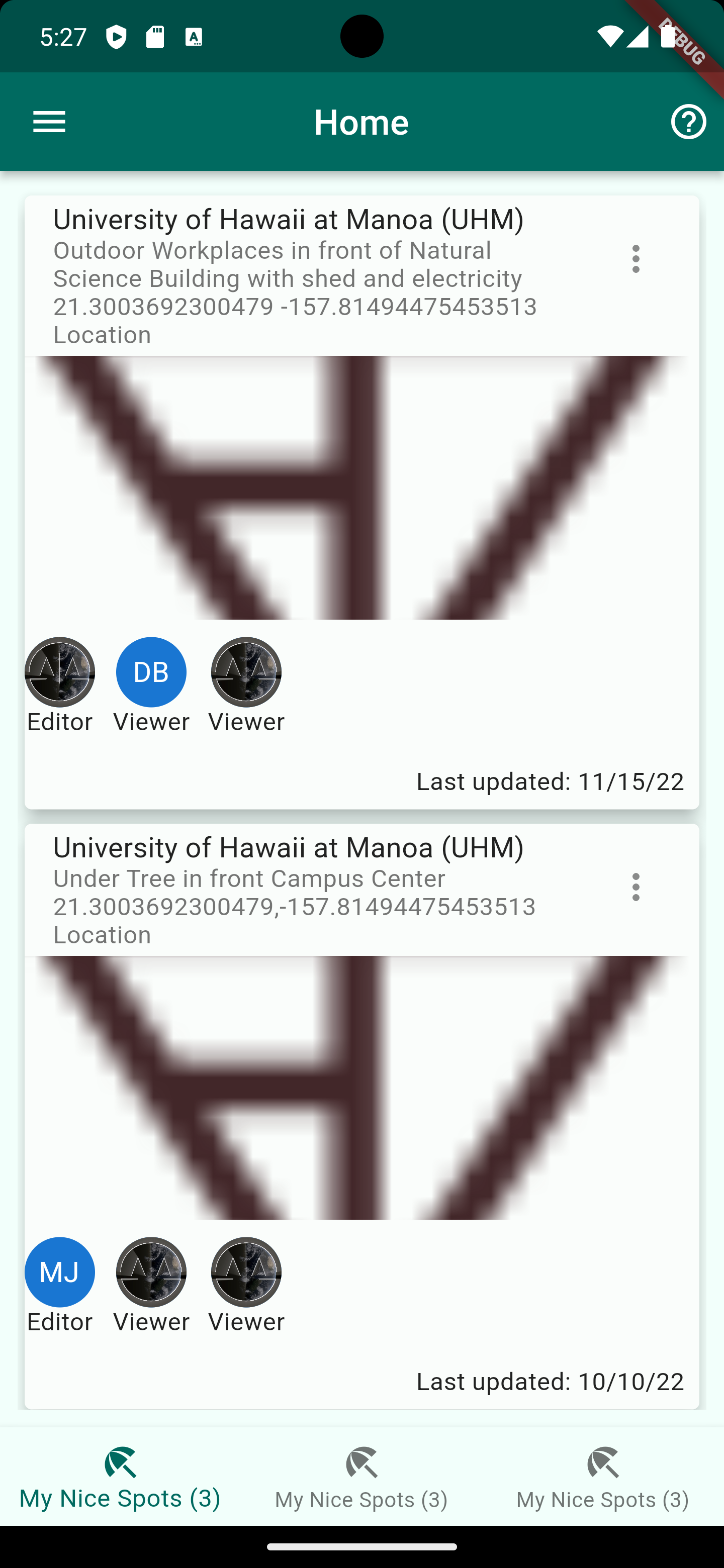
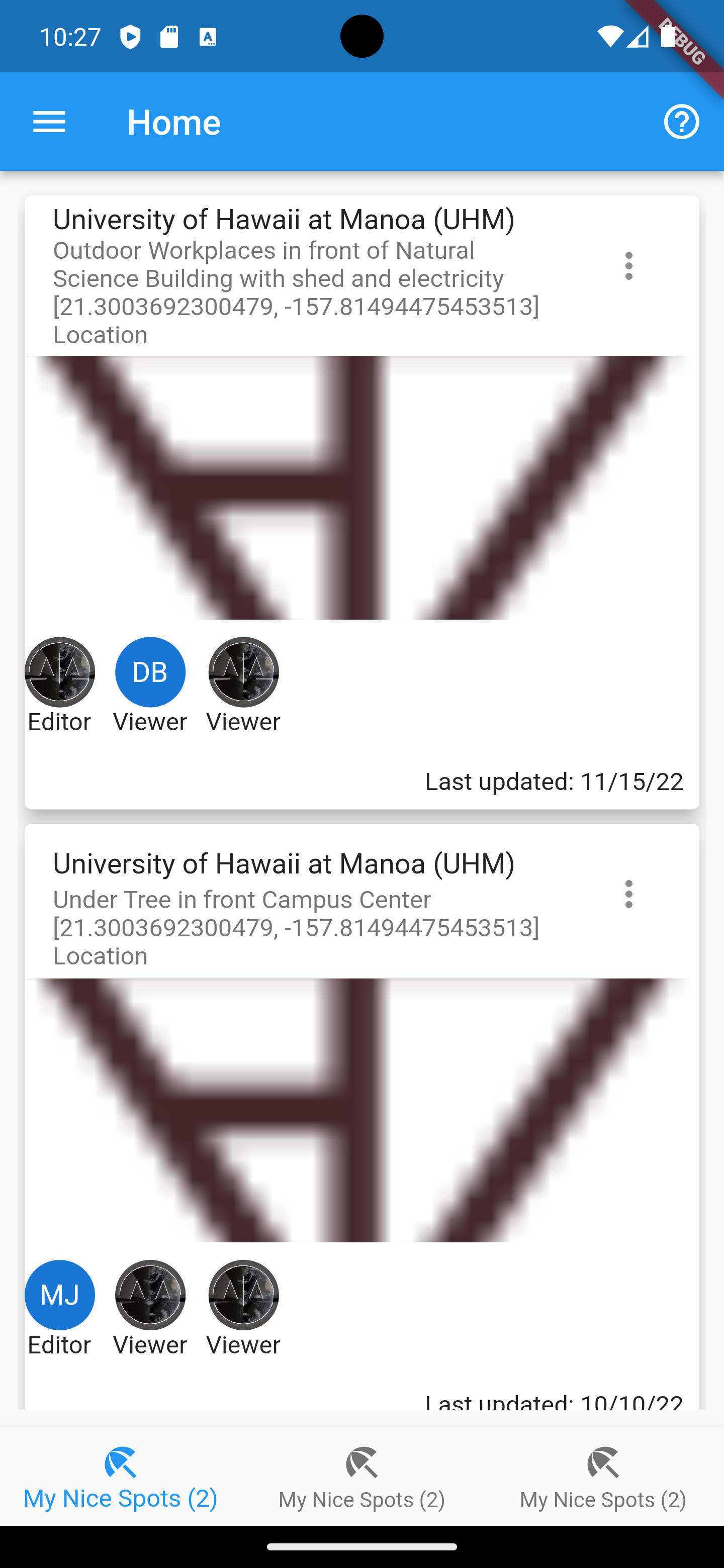
Home Screen works as command center and allows navigation to all elements (Central Element of Application)
Add or Edit a Nice FreeWork Spot
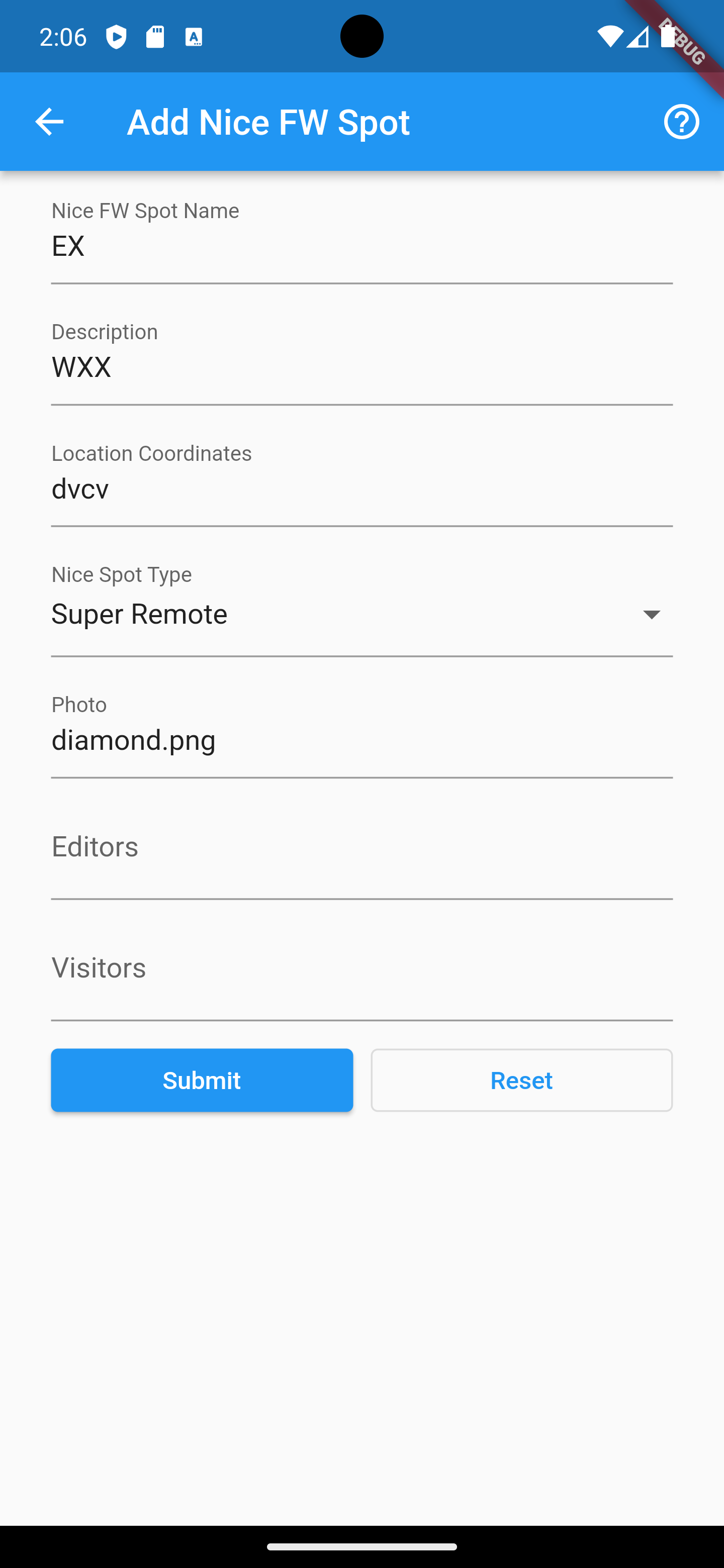
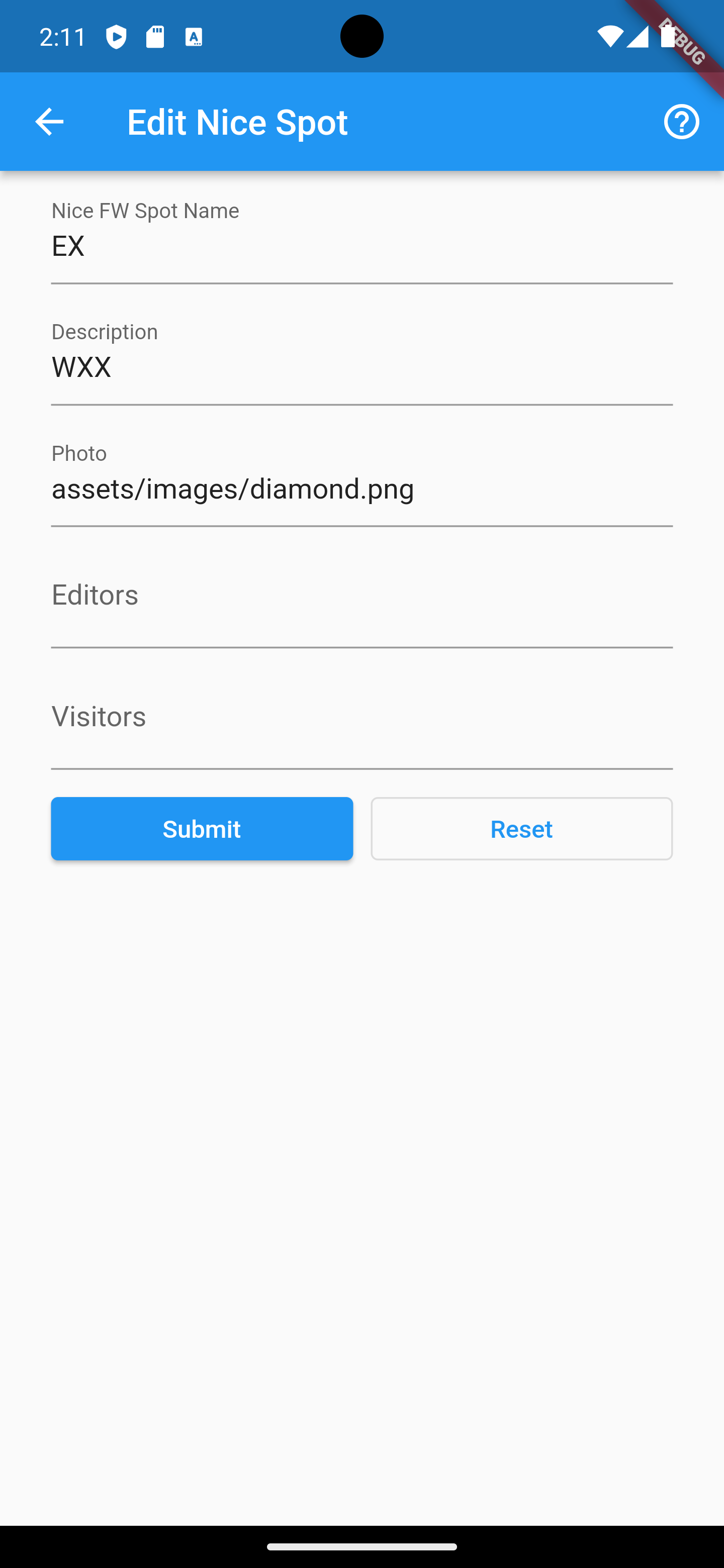
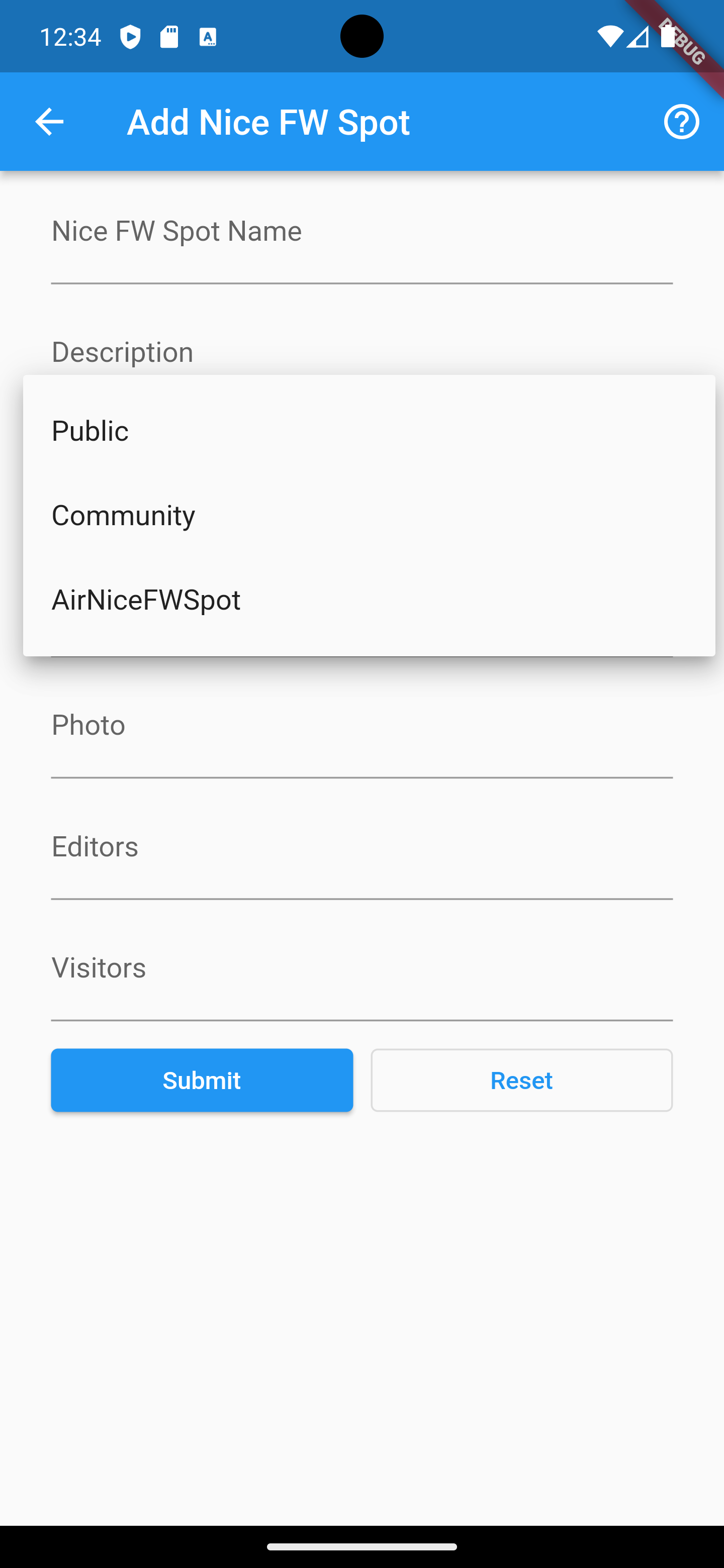
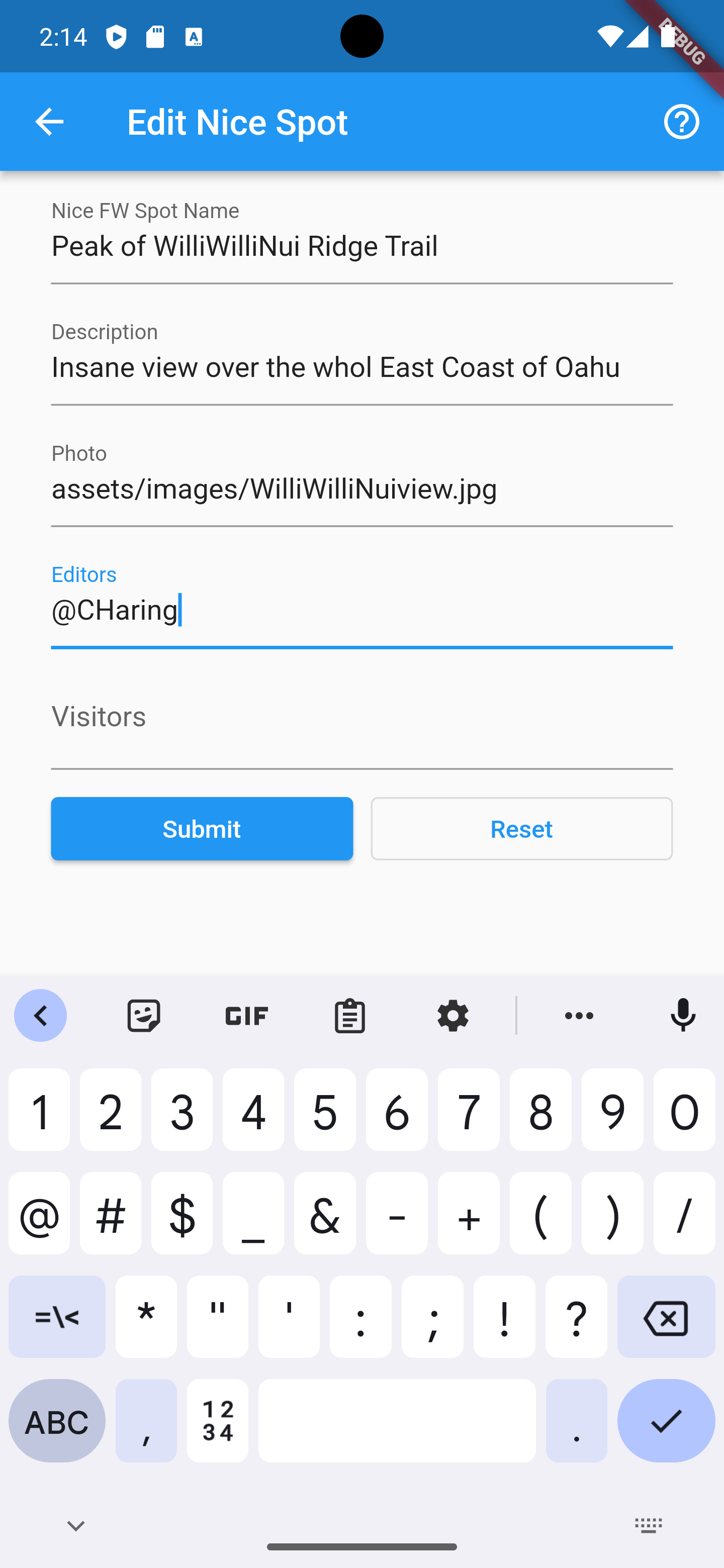
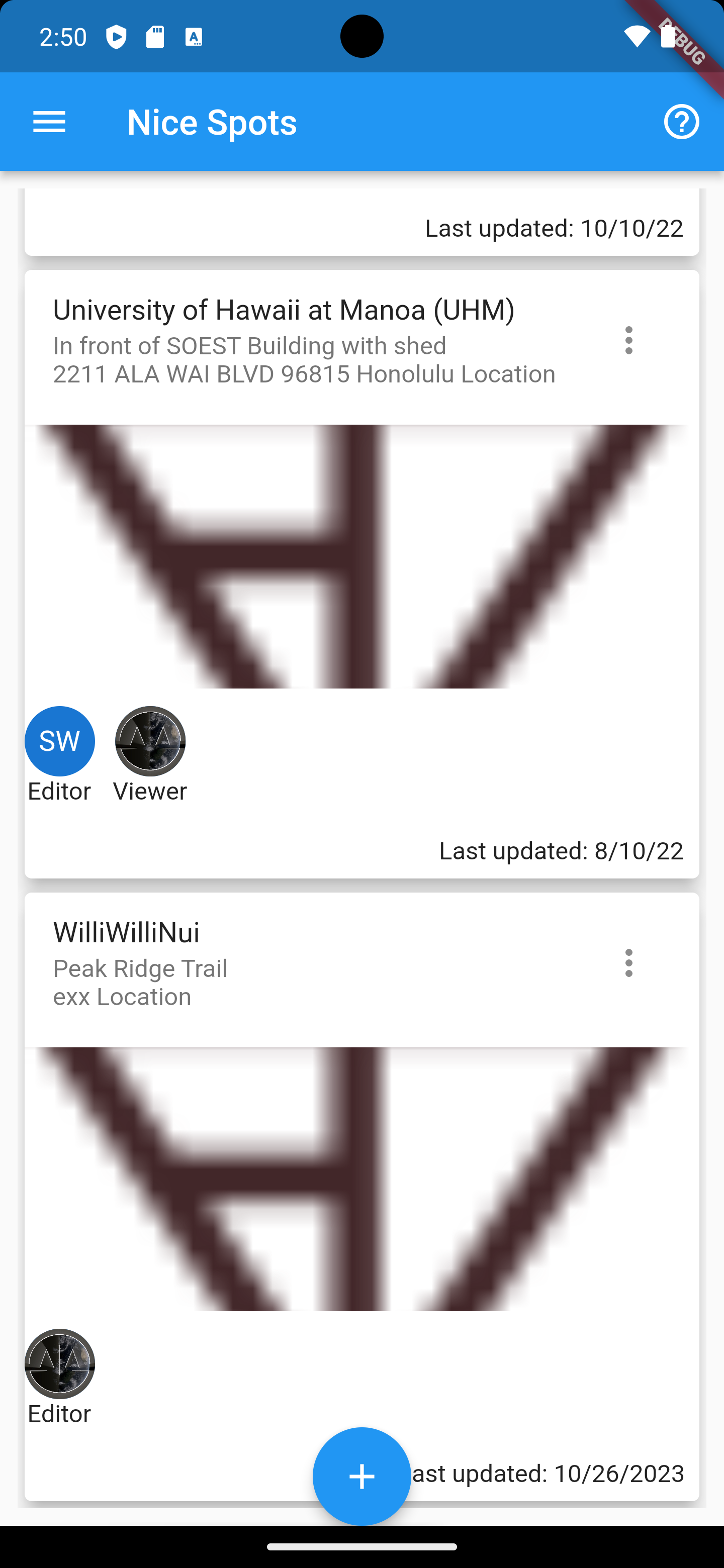
Here the user can add or edit FREEWORK spots which are automatically added to the database in realtime and added to the FREEWORK map
FREEWORK MAP
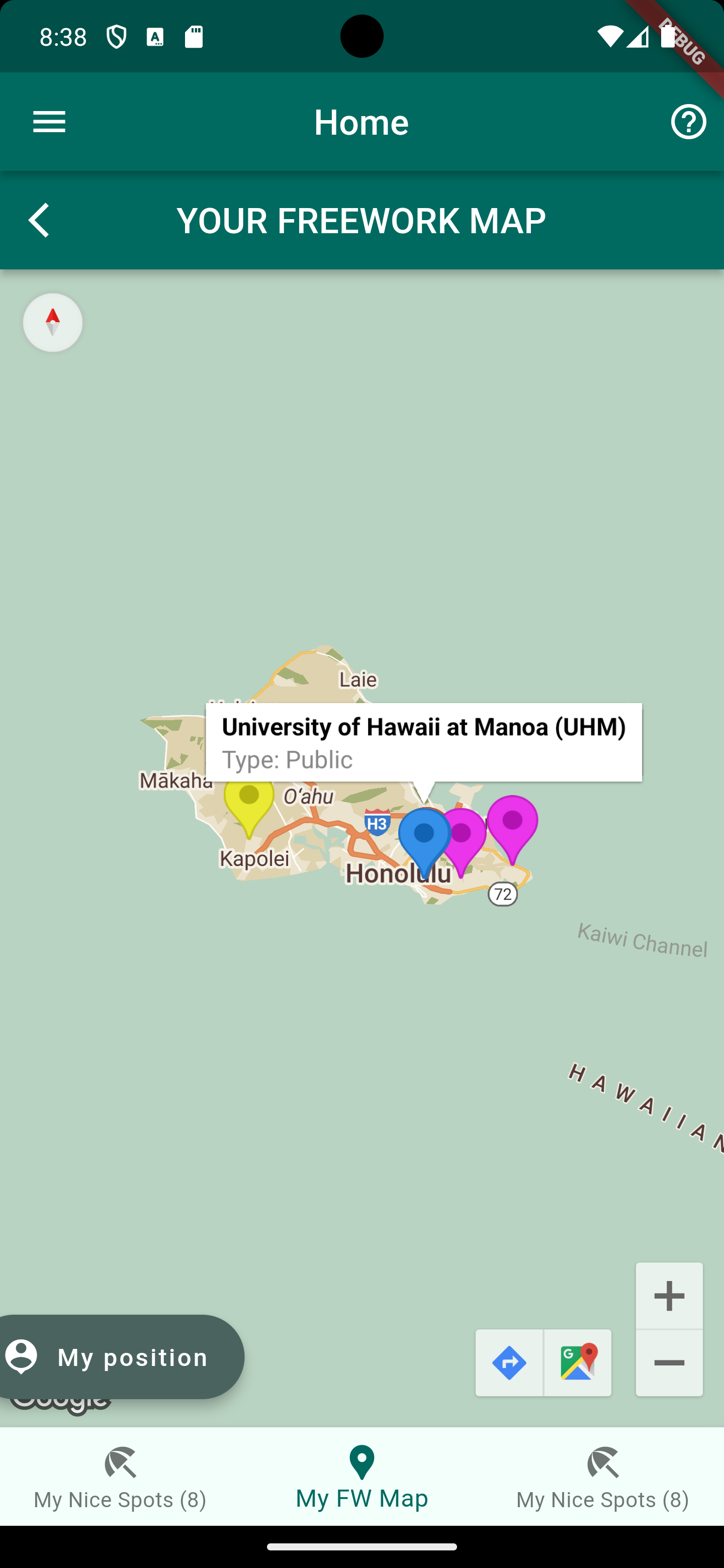
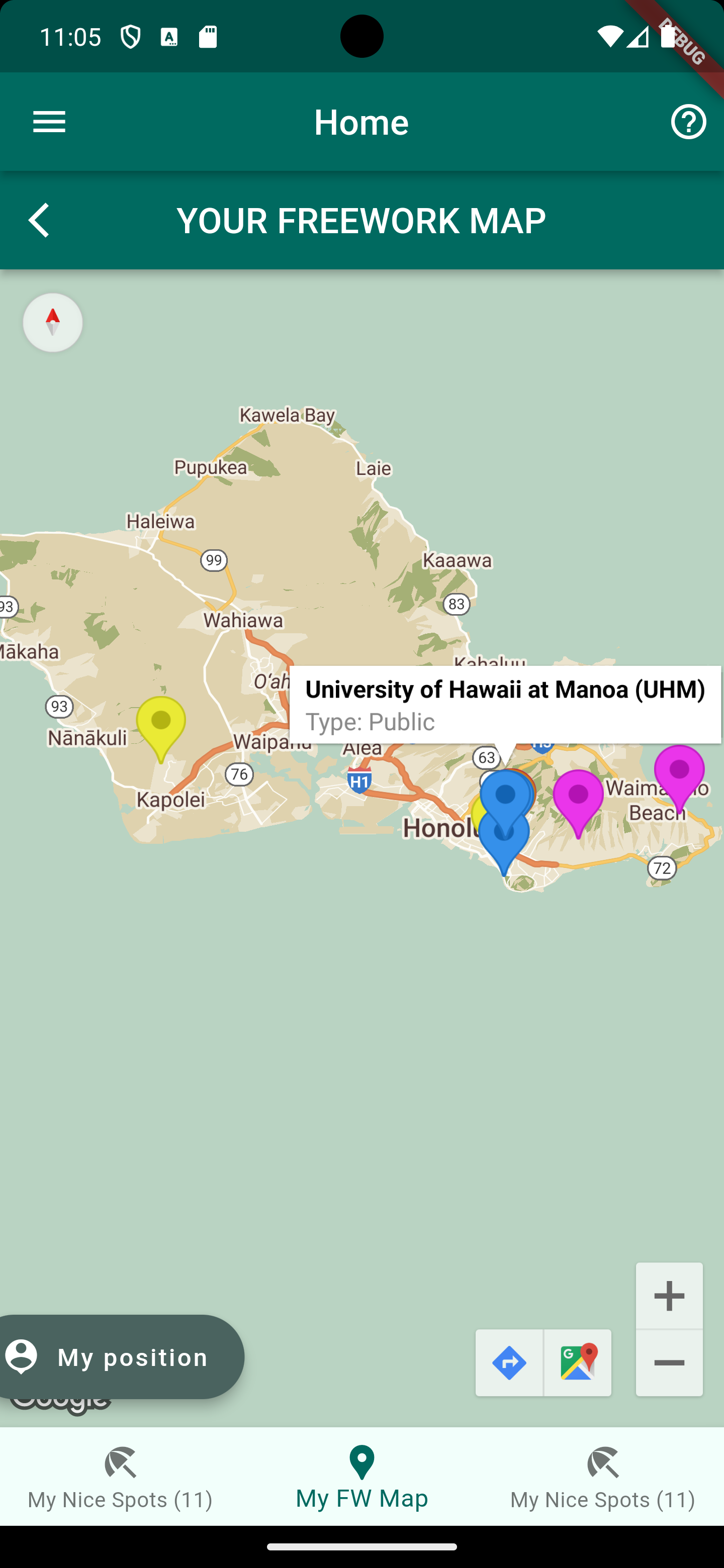
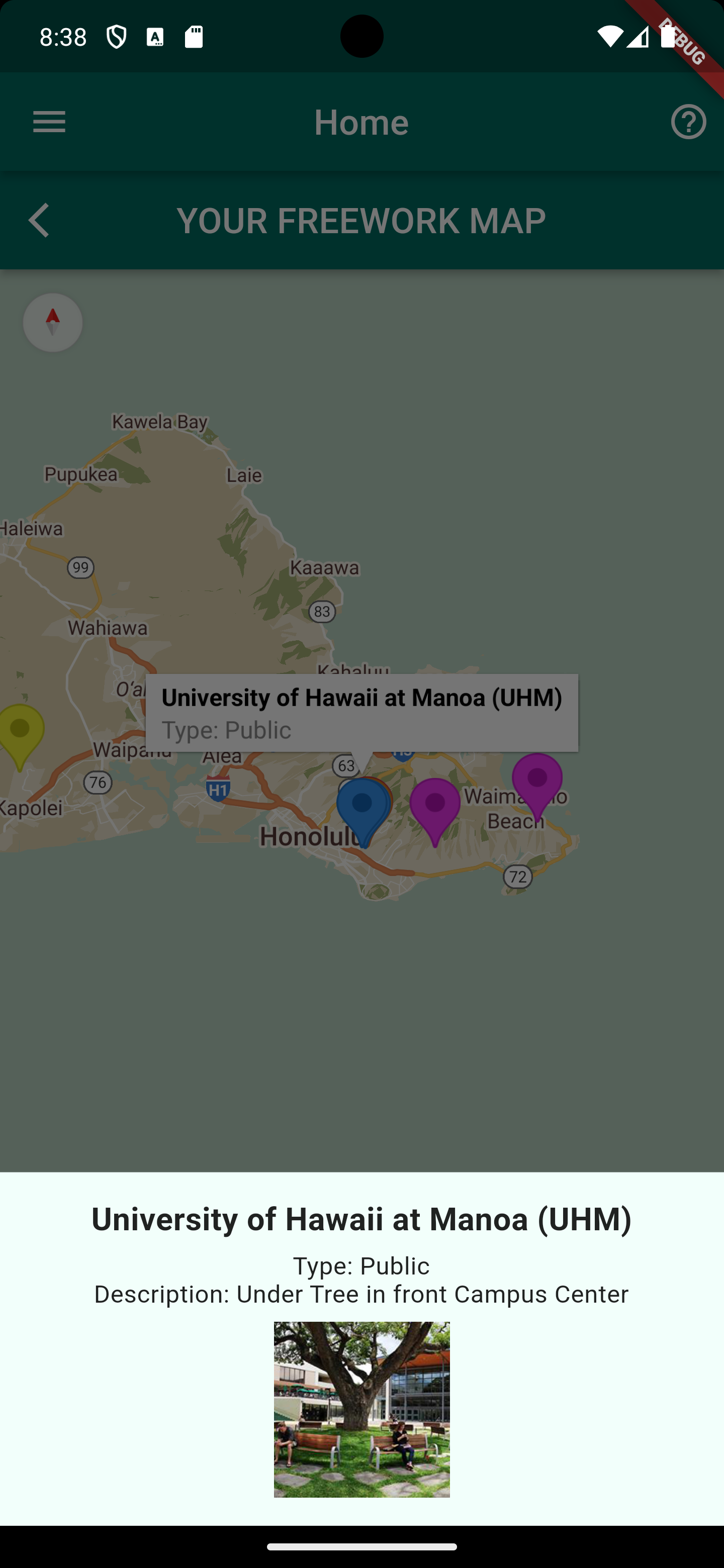
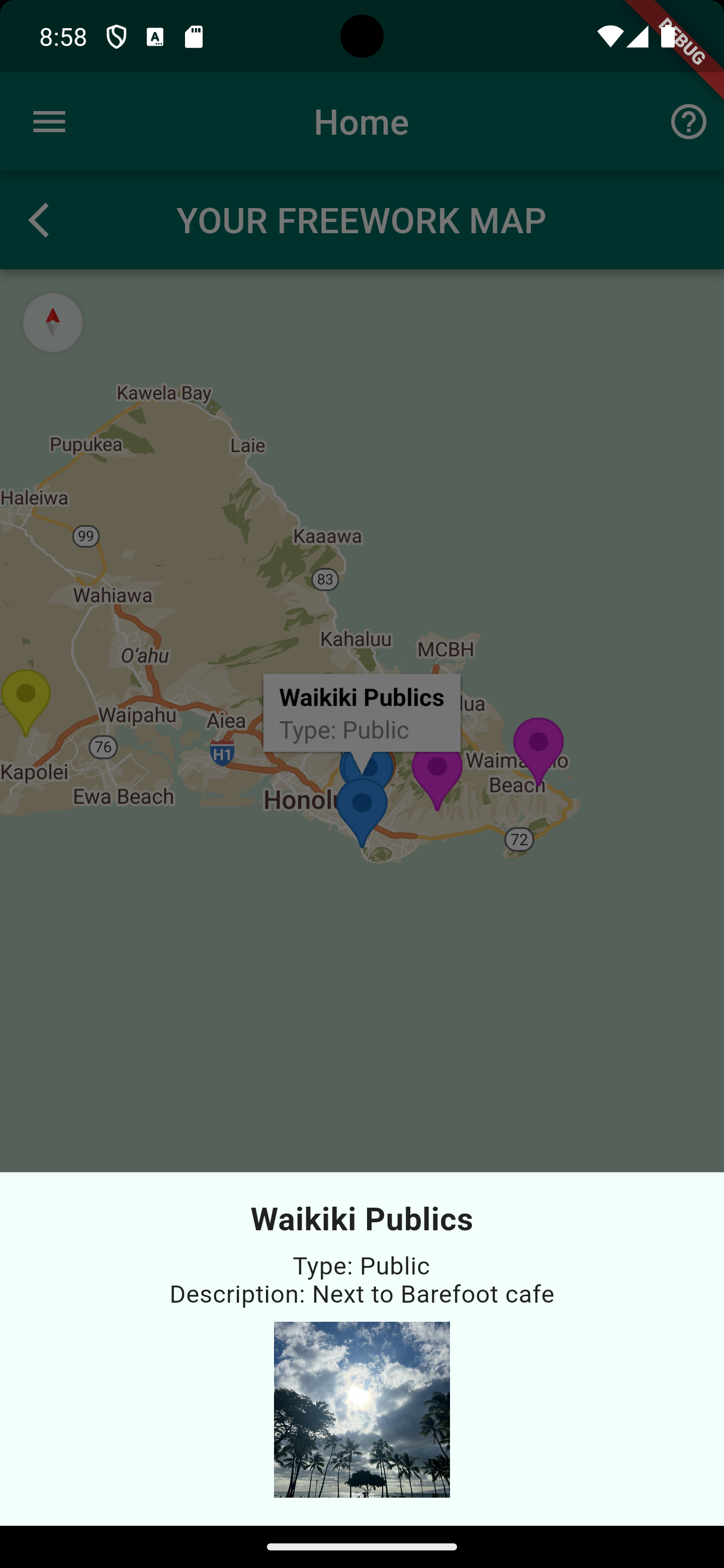
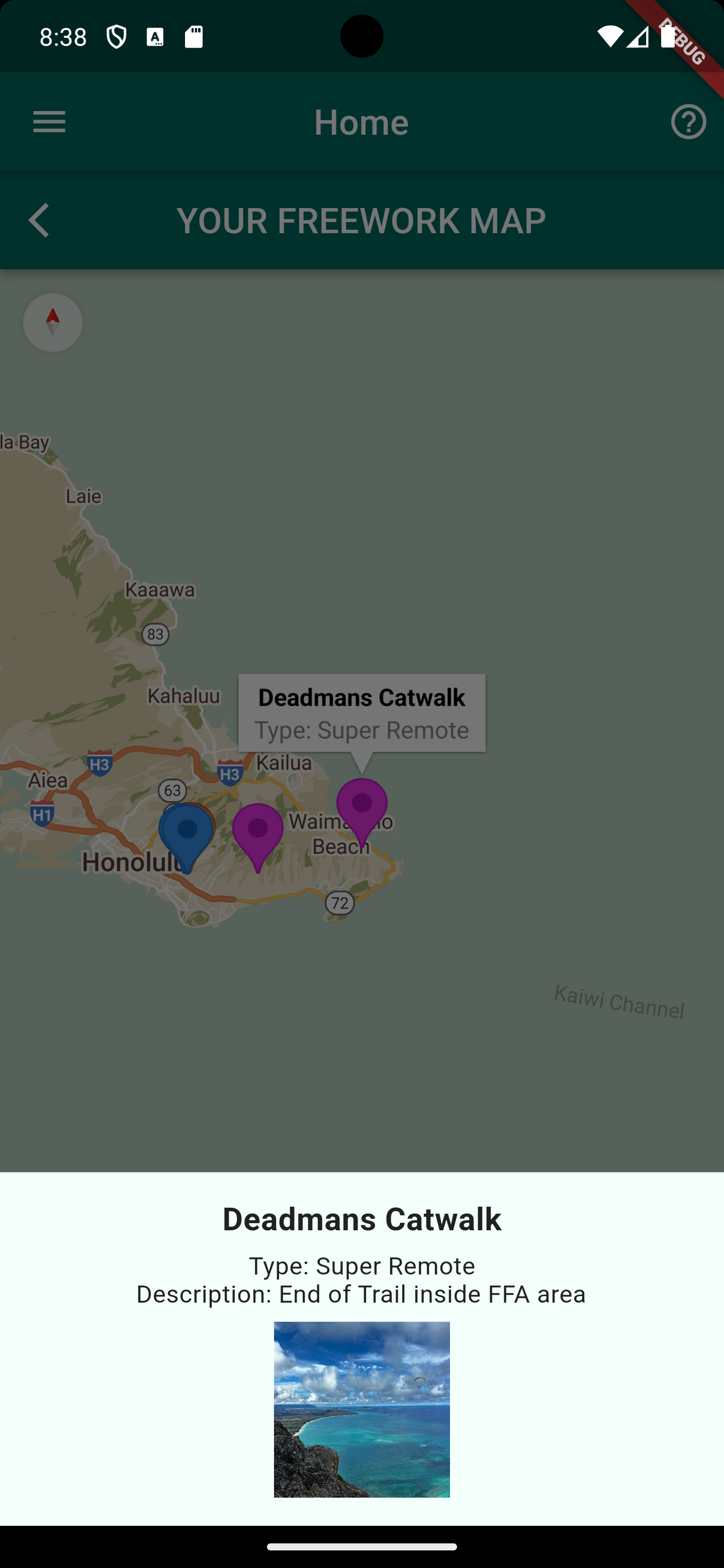
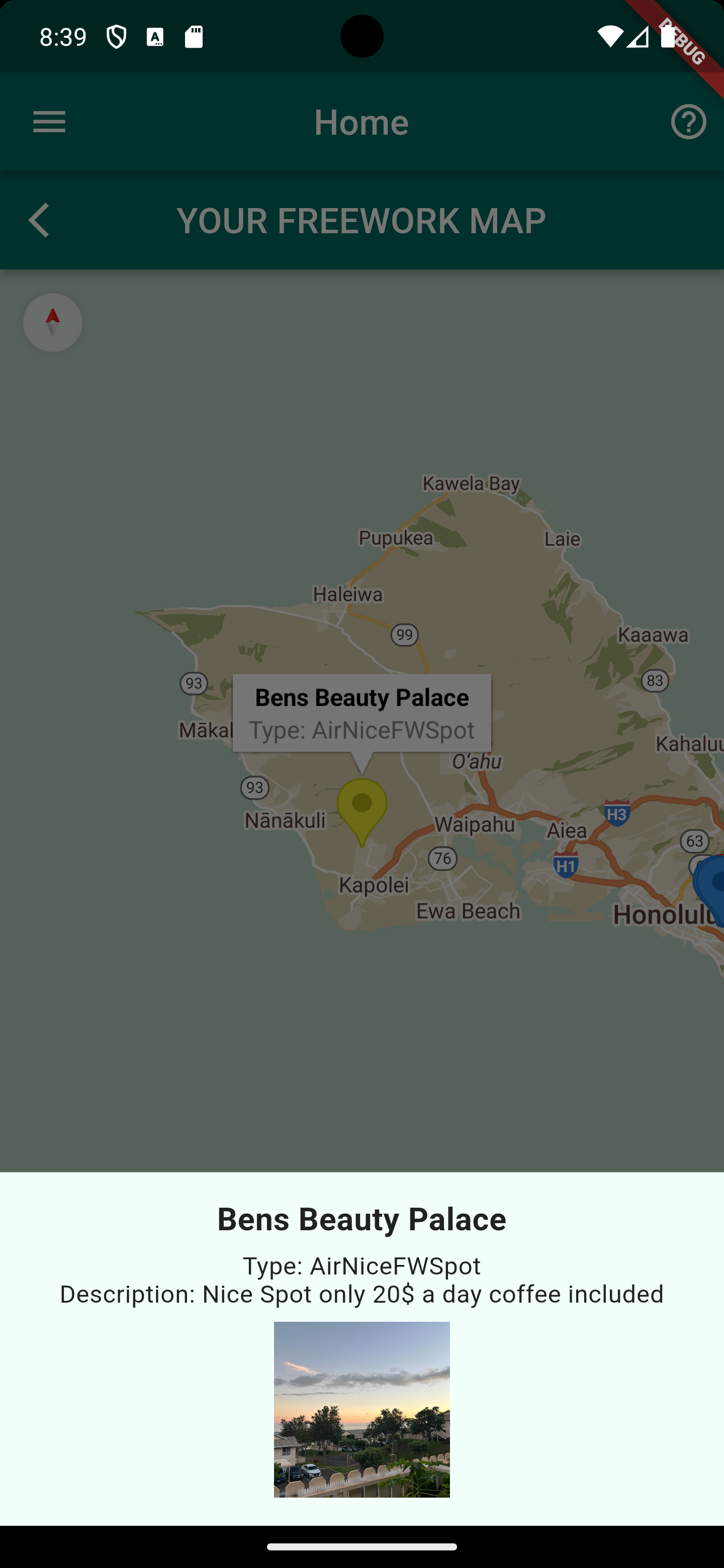
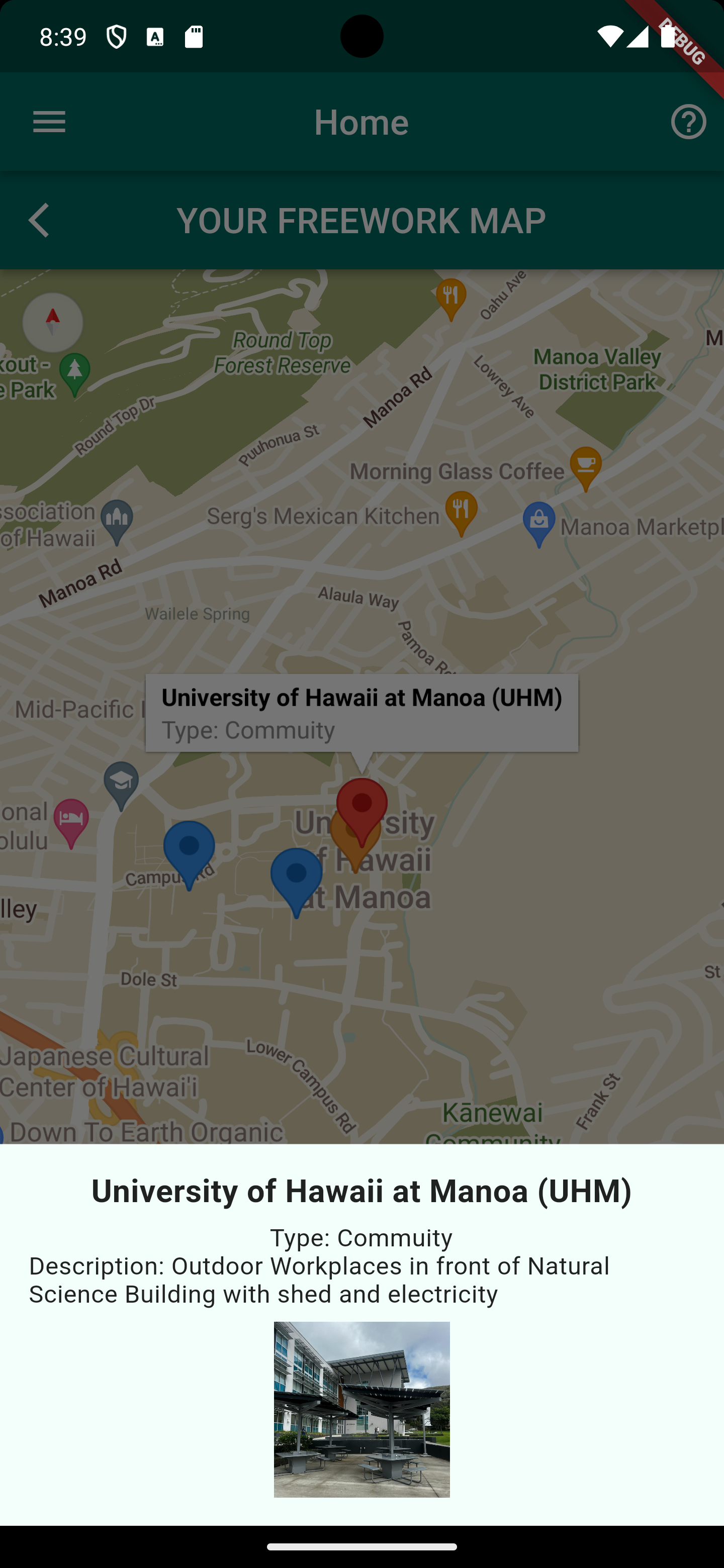
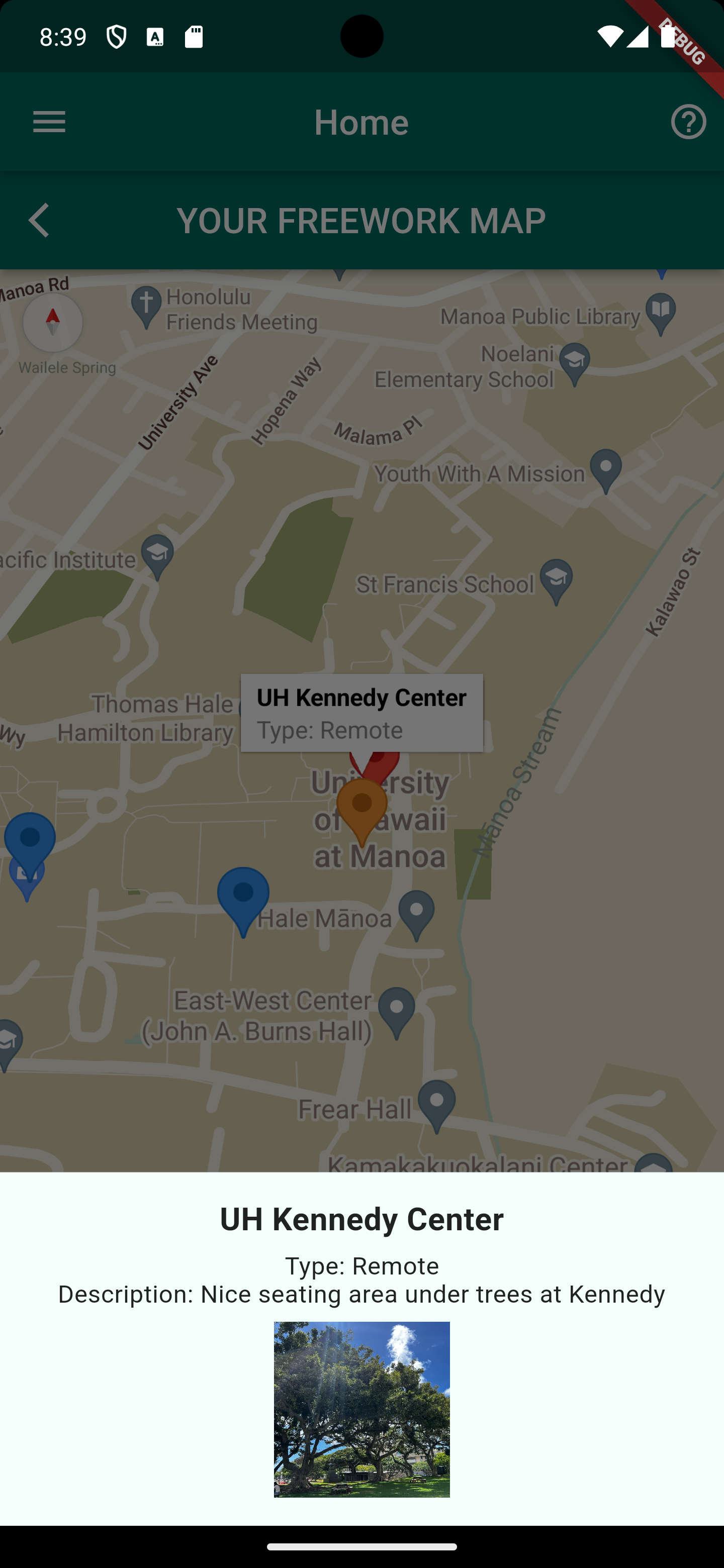
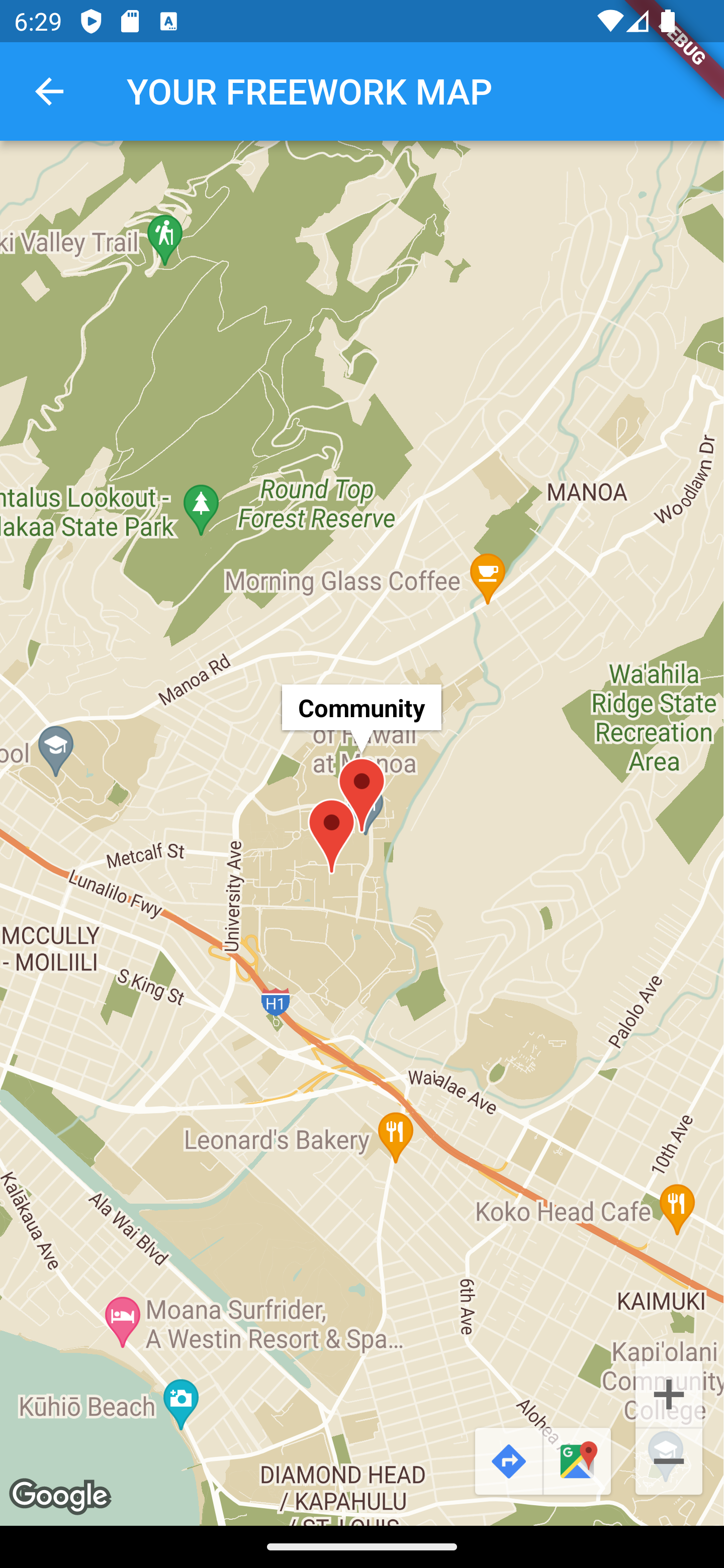
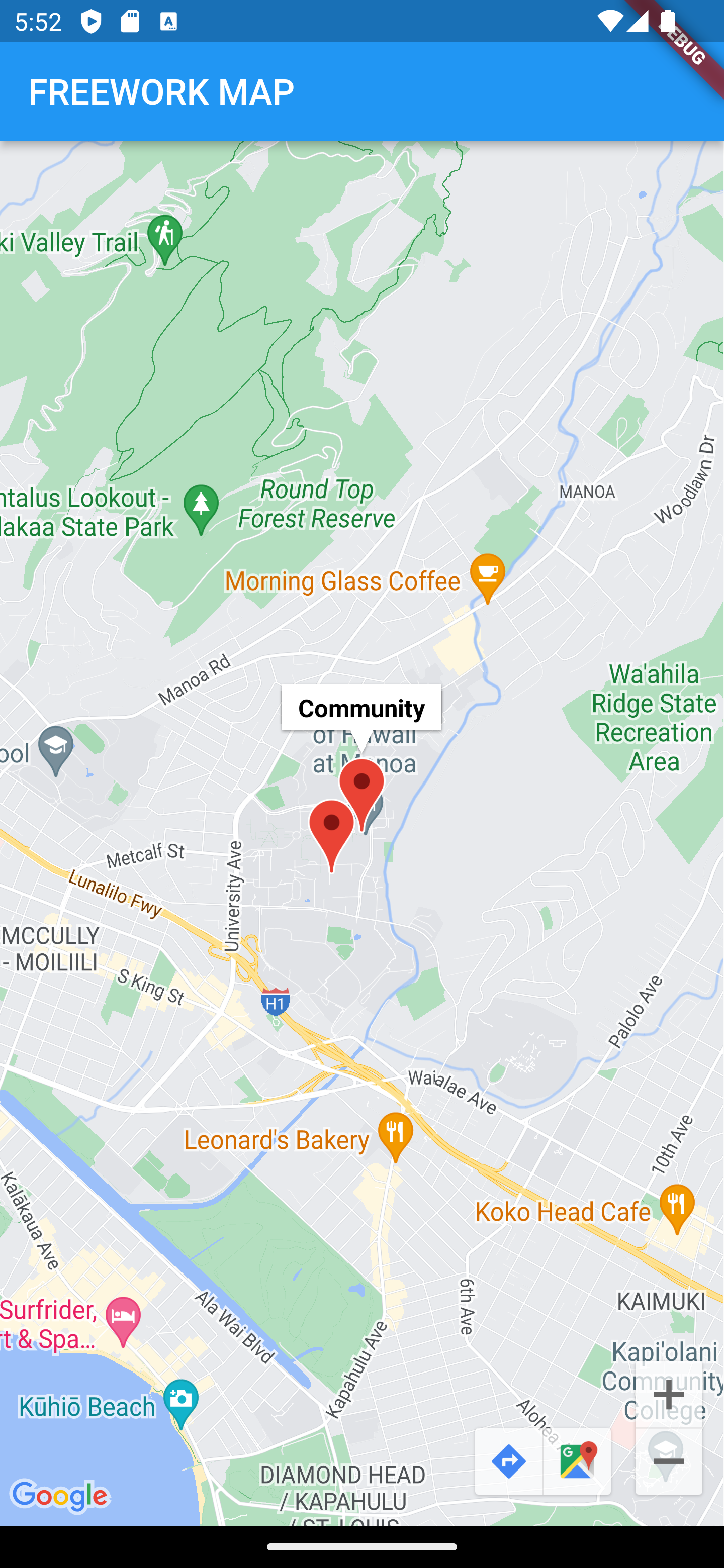
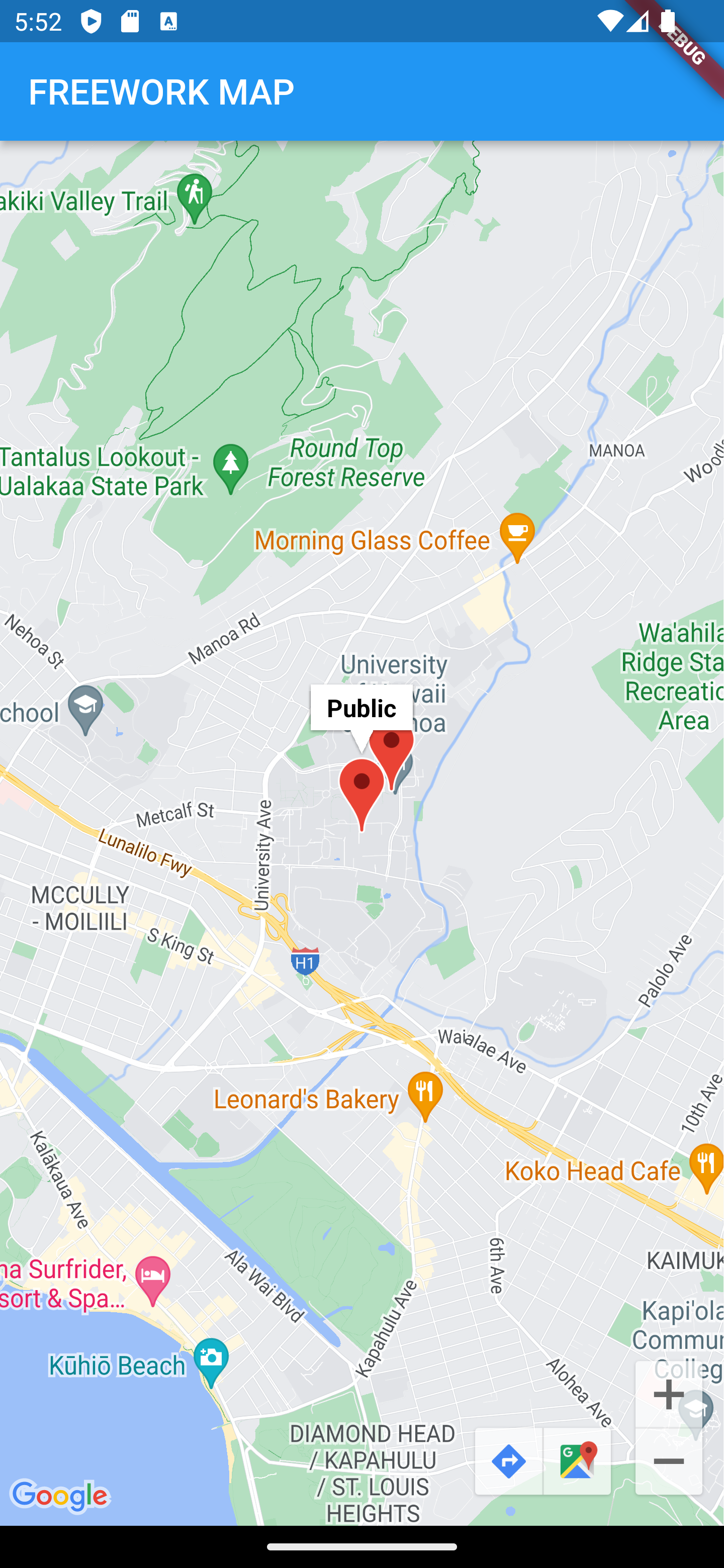
The FREEWORK main map shows all nice FREEWORK spots in an area around your current location where different colours of markers indicate different kinds of spots. So far the colours and categories are as followed: - blue = public - orange = community - red = remote - pink = super remote - yellow = AIR FREEWORK spots which you can rent for a day
The map also enables a button to jump to your current position as well as buttons as links to GoogleMaps for the navigation, once you choosed your FREEWORK spot for the day.
FREEWORK NAVIGATION
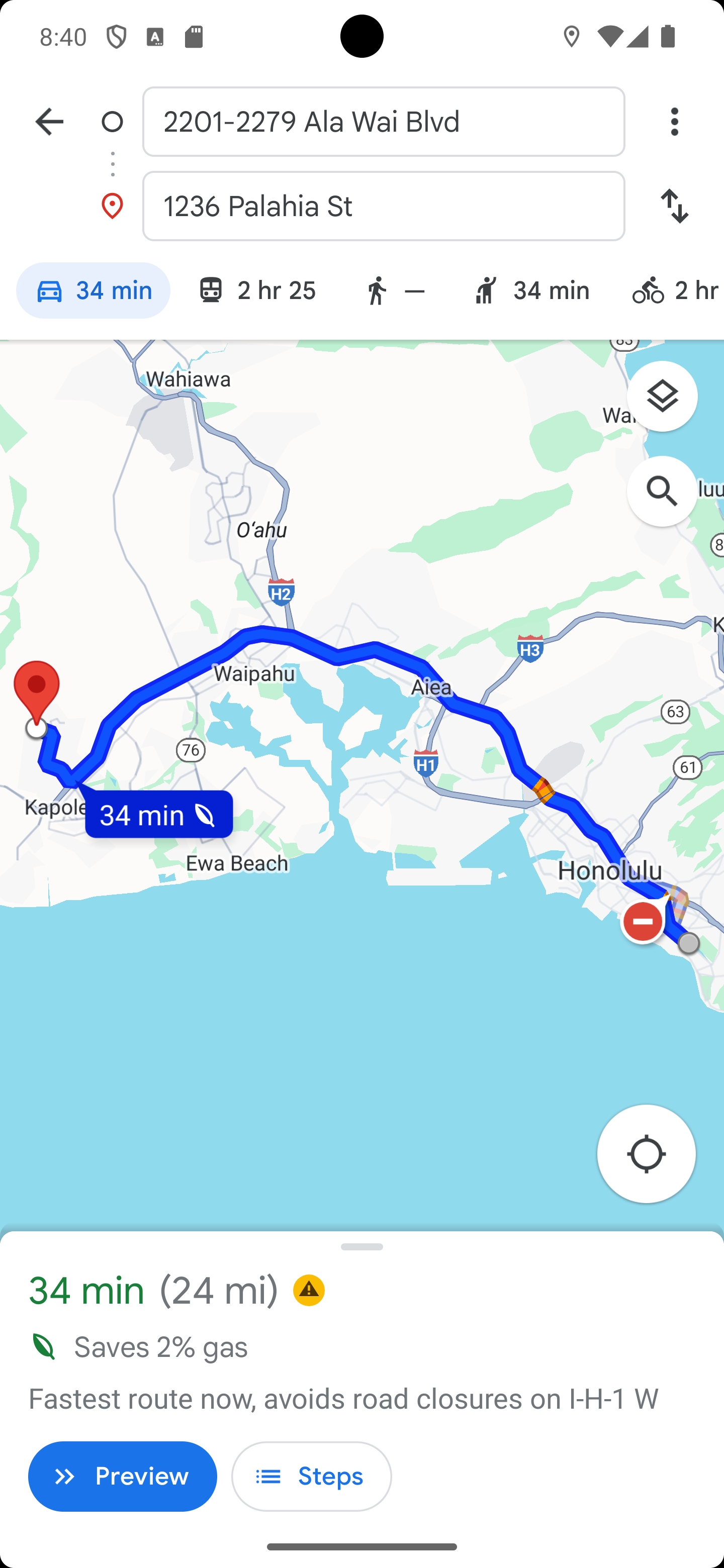
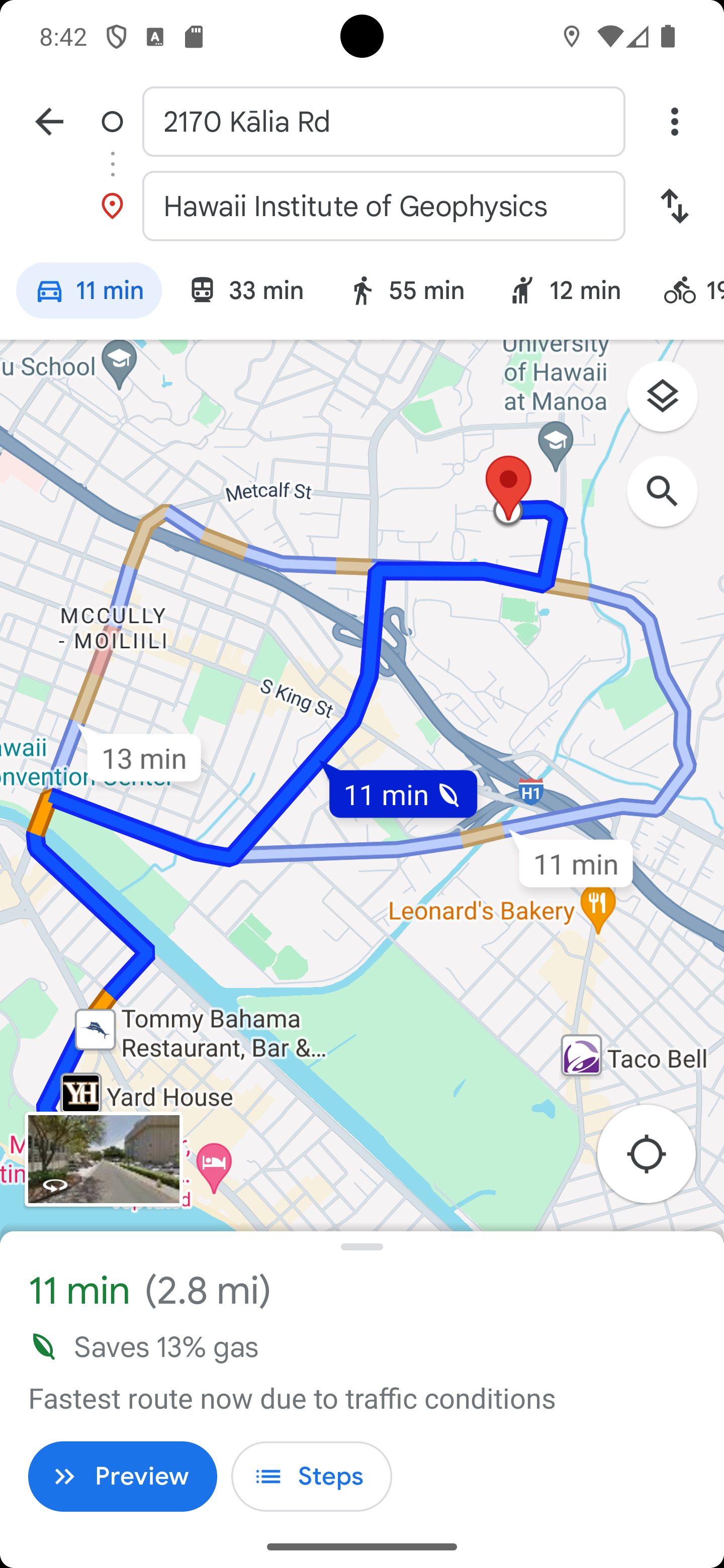
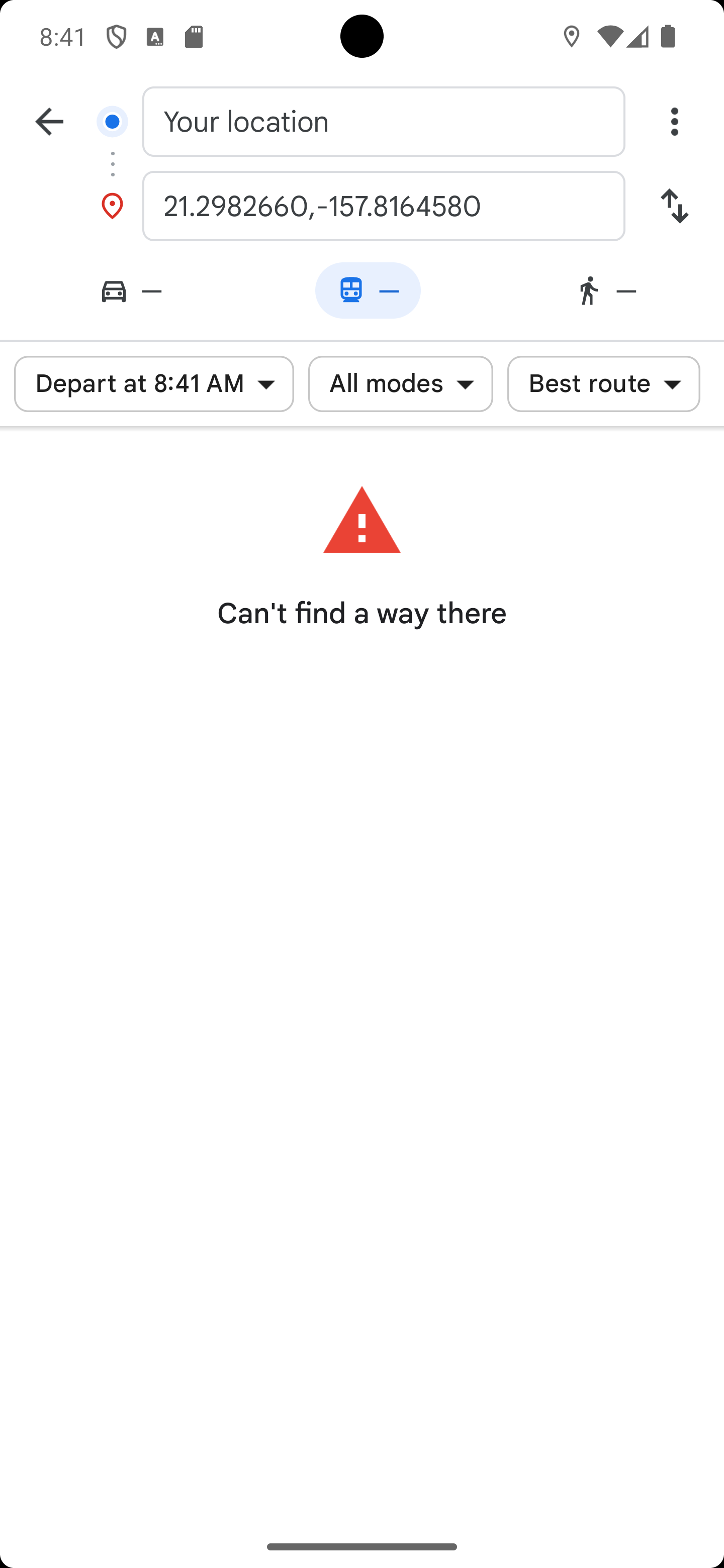
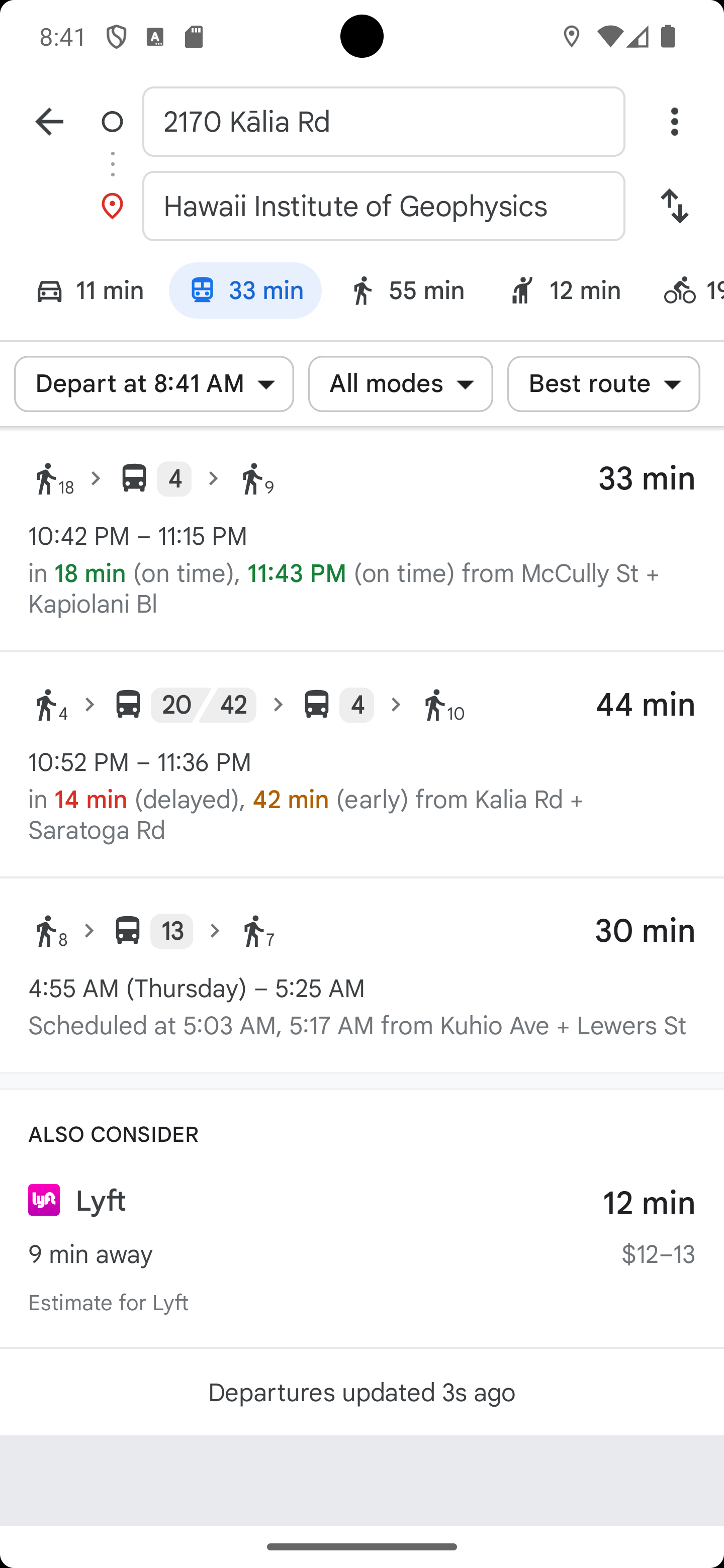
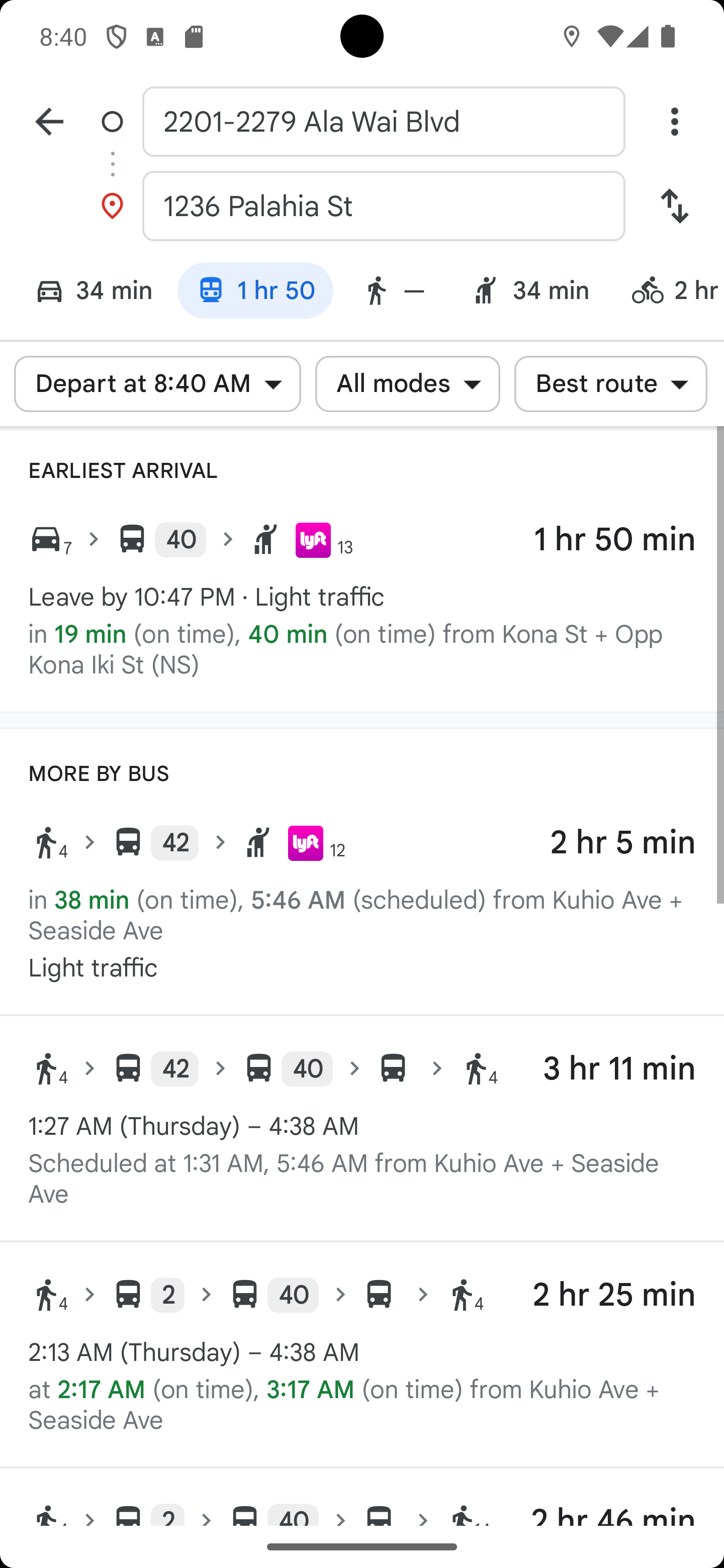
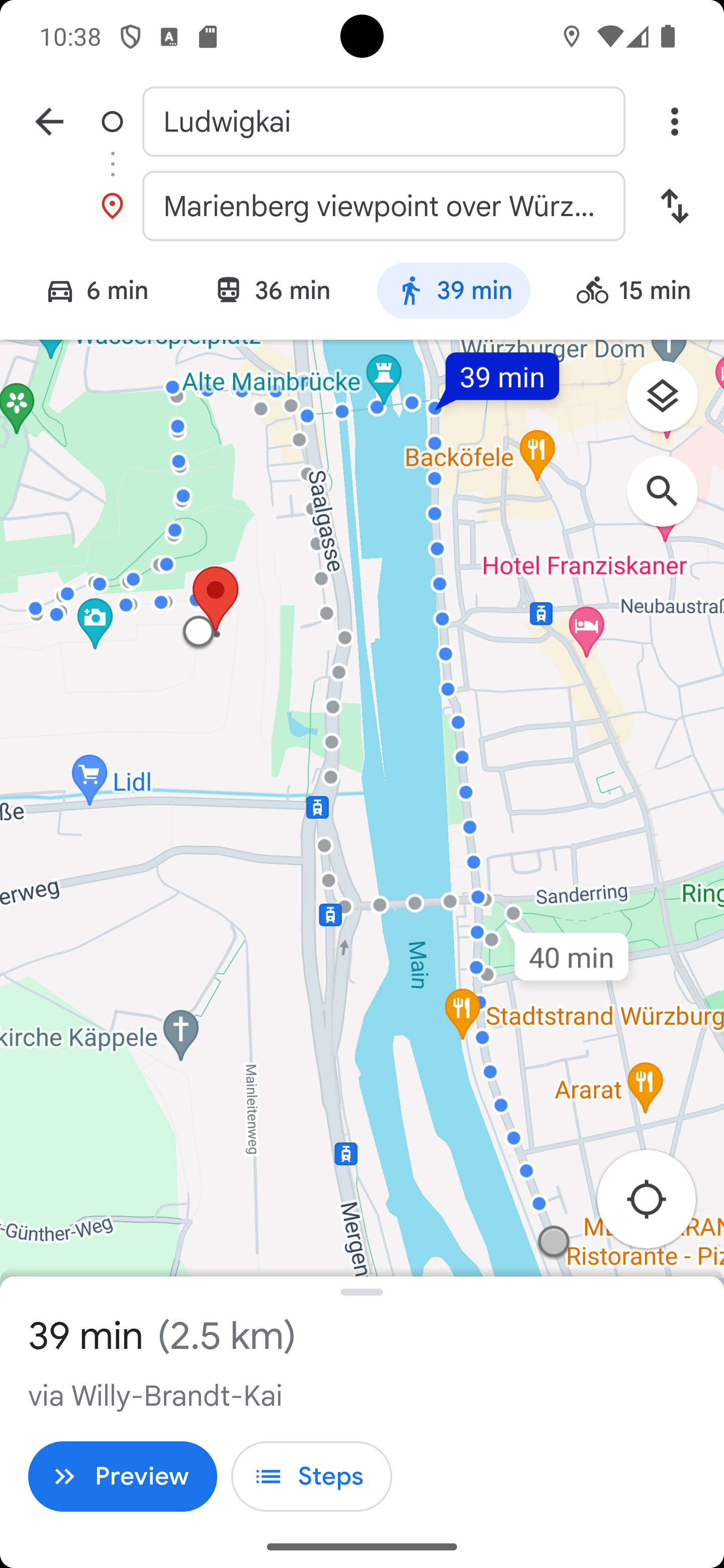
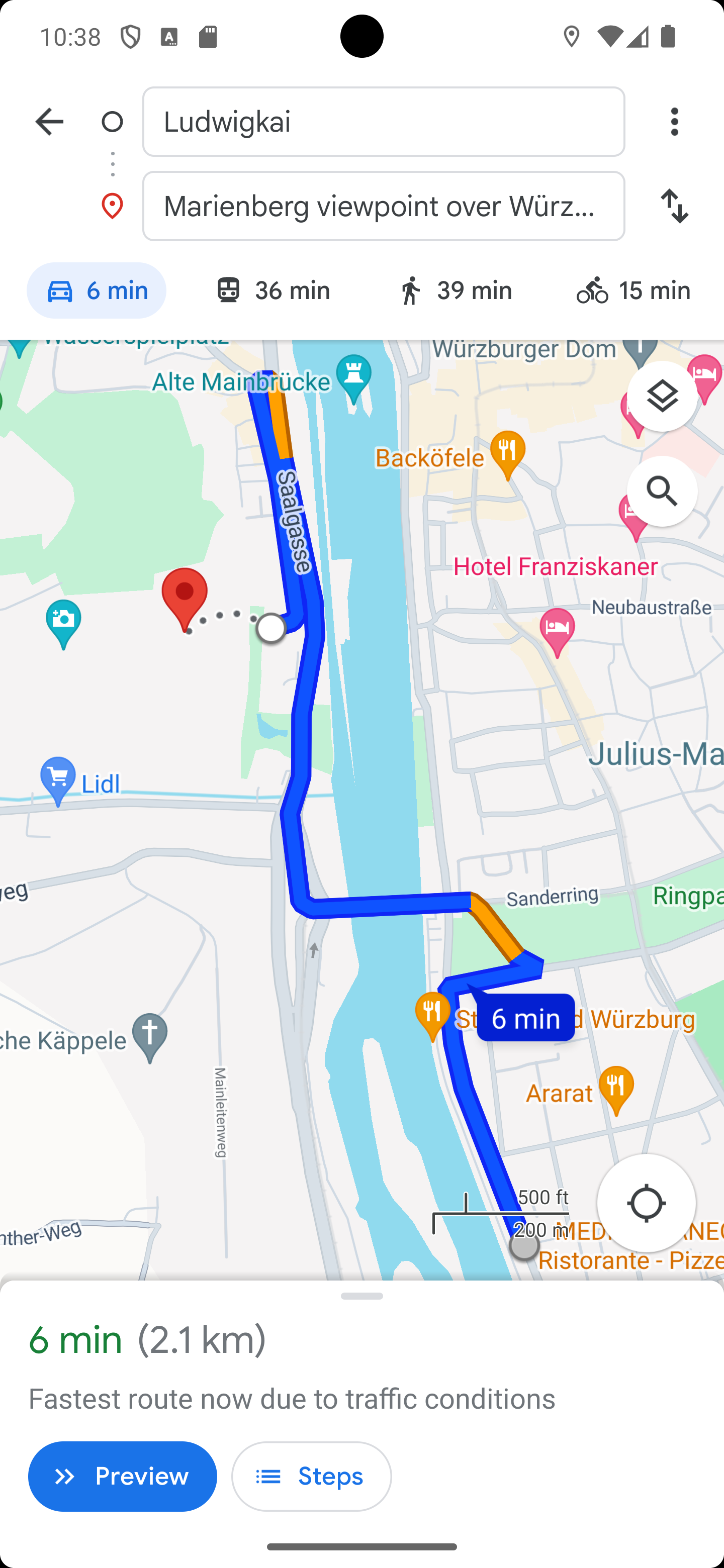
GoogleMaps enables easy and convenient navigation with different options to get to your FREEWORK spot.
Based on your preferences and your shared information, your personal FREEWORK MAP with different proposals and options will be delivered for you